Excel Gantt chart template: a task table that draws and reschedules itself
An Excel-friendly Gantt chart template: a 14-task budget-cycle plan as a table you can copy into Excel and paste back, with dependencies, milestones and calculated dates that Excel cannot do natively.
What the excel gantt chart template: a task table that draws and reschedules itself process is
Most Gantt charts in spreadsheets start the same way: a table of tasks with a start date and a number of days, and a stacked bar chart on top. It works until something moves. The bars are drawn from the dates you typed, so when the departments take a week longer than planned, every date after it has to be retyped by hand, and nothing in the workbook knows which tasks were waiting for which.
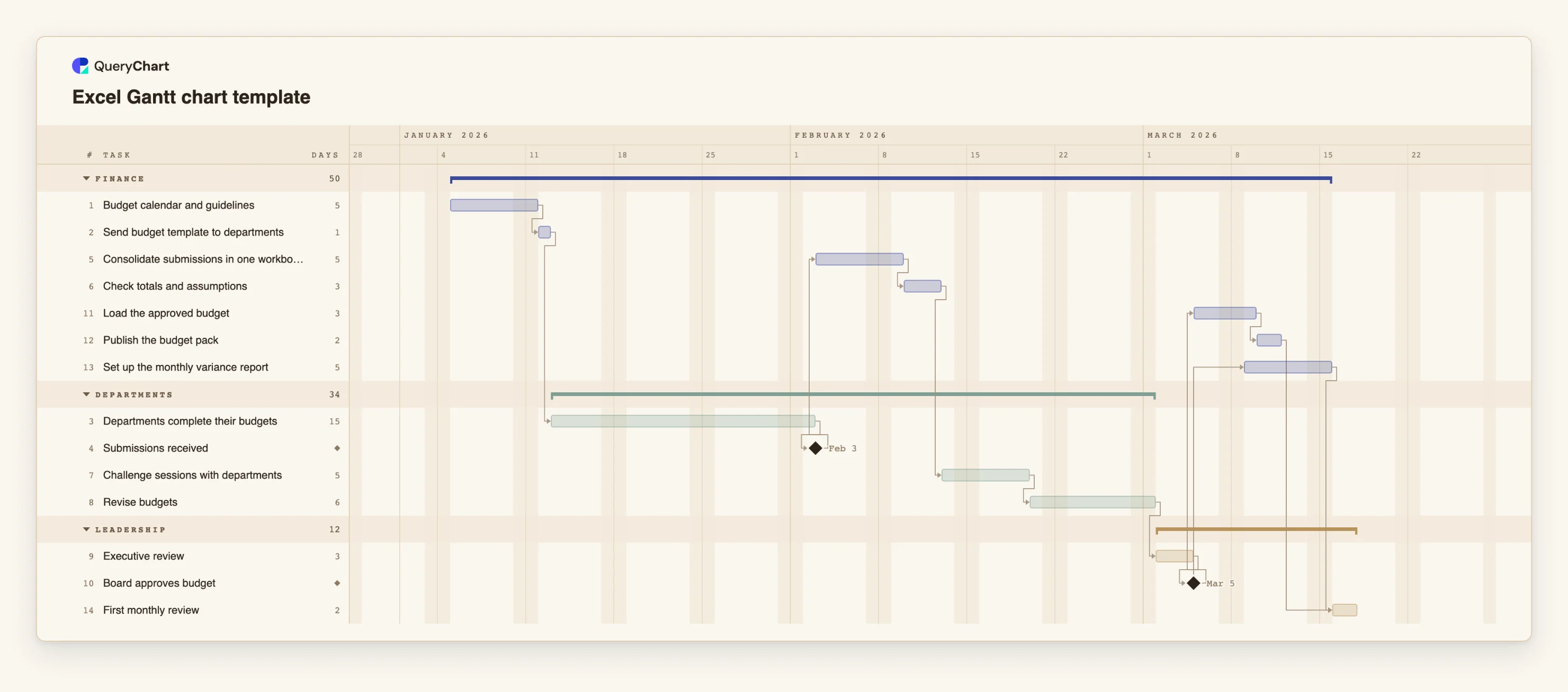
This template keeps the part of that workflow that Excel is good at, the table, and adds the part it is not good at. The plan is an annual budget cycle, a process most finance teams already run in Excel: a calendar and guidelines, a template sent to departments, a long wait for the submissions, consolidation in one workbook, challenge sessions, revisions, executive review and approval. Each row has a length in working days and the tasks it depends on, and the dates are calculated from those. Change "Departments complete their budgets" from 15 days to 20 and everything after it moves.
You can work in either direction. Copy the table that sits beside the chart, paste it into Excel, edit it there, and paste it back: the header line is matched to the columns by name, in any order. The CSV below is the same plan as a file. Two cautions from the way the paste is read. Dates are safest in one form, because a date such as 3/4 is read in your locale's order rather than the one your spreadsheet used, so format a date column as yyyy-mm-dd before you copy it. And a Depends on cell that names several tasks contains commas, so a CSV must quote it.
What this template is not: a workbook with formulas. It does not export an .xlsx file with a built-in chart; the export formats are a PDF, an image, an SVG and a CSV. For the step-by-step Excel method itself, including the stacked bar chart, see the Excel guide at /guides/how-to-create-a-gantt-chart-in-excel.
What this flowchart covers
In this template
- Three groups, Finance, Departments and Leadership, with 14 tasks and two milestones: "Submissions received" and "Board approves budget".
- The long wait that Excel hides: "Departments complete their budgets" takes 15 working days, and "Consolidate submissions in one workbook" cannot start until "Submissions received".
- A chain of reviews that each wait for the last: "Check totals and assumptions", "Challenge sessions with departments", "Revise budgets" and "Executive review".
- Work that starts alongside: "Set up the monthly variance report" starts two working days after "Board approves budget" starts, so it overlaps "Load the approved budget" instead of following it.
- A join at the end: "First monthly review" waits for both "Publish the budget pack" and "Set up the monthly variance report".
- The same table in two forms: the plan table under the chart and a CSV you can paste into QueryChart or open in Excel.
When to use this template
- You keep a task list in Excel and every change means retyping the dates below it.
- You need dependencies and a critical path, which an Excel bar chart does not have.
- You want a Gantt chart you can share as a link or a PDF, built from a table you already have.
- You are asked when something will finish and the honest answer depends on which tasks wait for which.
The plan, task by task
Every task in the chart with its length in working days and what it waits for. A dependency is a step number; SS is start-to-start, FF is finish-to-finish, and +n is a lag in working days.
| # | Task | Group | Working days | Depends on |
|---|---|---|---|---|
| 1 | Budget calendar and guidelines | Finance | 5 | |
| 2 | Send budget template to departments | Finance | 1 | 1 |
| 3 | Departments complete their budgets | Departments | 15 | 2 |
| 4 | Submissions received | Departments | Milestone | 3 |
| 5 | Consolidate submissions in one workbook | Finance | 5 | 4 |
| 6 | Check totals and assumptions | Finance | 3 | 5 |
| 7 | Challenge sessions with departments | Departments | 5 | 6 |
| 8 | Revise budgets | Departments | 6 | 7 |
| 9 | Executive review | Leadership | 3 | 8 |
| 10 | Board approves budget | Leadership | Milestone | 9 |
| 11 | Load the approved budget | Finance | 3 | 10 |
| 12 | Publish the budget pack | Finance | 2 | 11 |
| 13 | Set up the monthly variance report | Finance | 5 | 10SS+2 |
| 14 | First monthly review | Leadership | 2 | 12, 13 |
The same plan as a CSV file
Copy this into the Gantt sheet, header line included: each column is matched by its name. A Depends on cell with several tasks contains a comma, so it is quoted. The plan has no dates; add a Start column with ISO dates (2026-04-03) for a task that is fixed.
Task,Group,Duration,Depends on
Budget calendar and guidelines,Finance,5,
Send budget template to departments,Finance,1,1
Departments complete their budgets,Departments,15,2
Submissions received,Departments,0,3
Consolidate submissions in one workbook,Finance,5,4
Check totals and assumptions,Finance,3,5
Challenge sessions with departments,Departments,5,6
Revise budgets,Departments,6,7
Executive review,Leadership,3,8
Board approves budget,Leadership,0,9
Load the approved budget,Finance,3,10
Publish the budget pack,Finance,2,11
Set up the monthly variance report,Finance,5,10SS+2
First monthly review,Leadership,2,"12, 13"
How it works
Start from the table in your workbook
Put one task per row with the columns Task, Duration, Depends on and, if you use them, Group, Start and Owner. Durations are whole working days. Leave Start empty for tasks that follow others.
Write dates and dependencies so they paste cleanly
Format any date column as yyyy-mm-dd. Write Depends on as task numbers or names, counting the first task as 1, with SS, FF or SF and a lag where needed, for example 13: 10SS+2 for a task that starts two working days after task 10 starts.
Copy the table, header line included
Select the whole table in Excel and copy it. The first line names the columns, and each is matched by name: Task, Start, End, Duration, Depends on, Progress, Group and Owner are all recognised, as are common synonyms, at least two of them.
Paste into the Gantt sheet
Open the template, select the first Task cell and paste. The header line itself is not written. Anything that cannot be read, such as an unreadable date or a dependency on a task that does not exist, is reported and left out, not guessed.
Read the schedule it calculates
The bars and dates now follow from the lengths and dependencies. Turn on the critical path in the View menu to see the chain that sets the finish date.
Keep one copy
Edit the plan in QueryChart from here on, and export a CSV when you want a table for Excel again. Two live copies drift apart.
Frequently asked questions
Is there an Excel Gantt chart template here?
There is a Gantt chart template whose task table you can copy into Excel, edit and paste back. It is not an .xlsx workbook with formulas: QueryChart exports a PDF, an image, an SVG and a CSV, and the dates are calculated in QueryChart, not in Excel.
Why use this instead of an Excel bar chart?
An Excel bar chart is drawn from the start dates and durations you type, so a delay means retyping every date after it. Here you enter lengths and dependencies and the dates are calculated, which also gives you milestones, groups and a critical path.
How do I get my Excel table into the chart?
Copy the rows, header line included, and paste them into the Gantt sheet. There is no file upload for Gantt charts yet, so copy the rows from your file or worksheet, header line included, and paste them into the sheet beside the chart.
Why did my date come out the wrong way round?
Because it can be read two ways. 3/4 could be 3 April or 4 March, and the sheet reads it in your locale's order, so a wrong reading would move the whole plan. Use yyyy-mm-dd or write the month as a word.
Can I export back to Excel?
Export the chart as a CSV, which lists each task with its dates, duration, dependencies and progress, and open it in Excel. The chart itself is not exported as an Excel chart.