How to show who owns each task on a Gantt chart
Show who owns what on a Gantt chart: use Group for the owning team and People for the named person, then read the handoffs where one owner's work waits for another's. Includes a worked example.
A schedule with no owners is a wish list. This guide shows how to record who is responsible for each task in QueryChart, which of the two fields to use for what, and how to read the chart for handoffs between owners.
The short version
- Use Group for the owning team and People for the named person; they answer different questions.
- When groups are owners, each dependency that crosses a band is a handoff to look at.
- People accepts a name or a colleague's email address, and an email follows the column's access rule.
- Owners show in the sheet, the hover card, the task card and the CSV export; the bars themselves are not labelled with names.
- A Gantt chart shows responsibility and timing, not hierarchy or full process detail.
Two fields, two questions
A task can be owned in two ways, and they answer different questions. Group says which team or function the task belongs to, and it draws the band the task sits in. People says which named person is doing it. A plan usually needs both: the group tells a department head what is coming to their area, and the name tells the person it is theirs.
The reason to do this on a Gantt chart rather than in a list is the dependency lines. When the groups are owners, every line that crosses from one band to another is a handoff: one owner's work finishing so that another's can begin. Those crossings are where plans slip, because the receiving owner may not know the work is coming. A chart grouped by owner makes them visible before anyone is late.
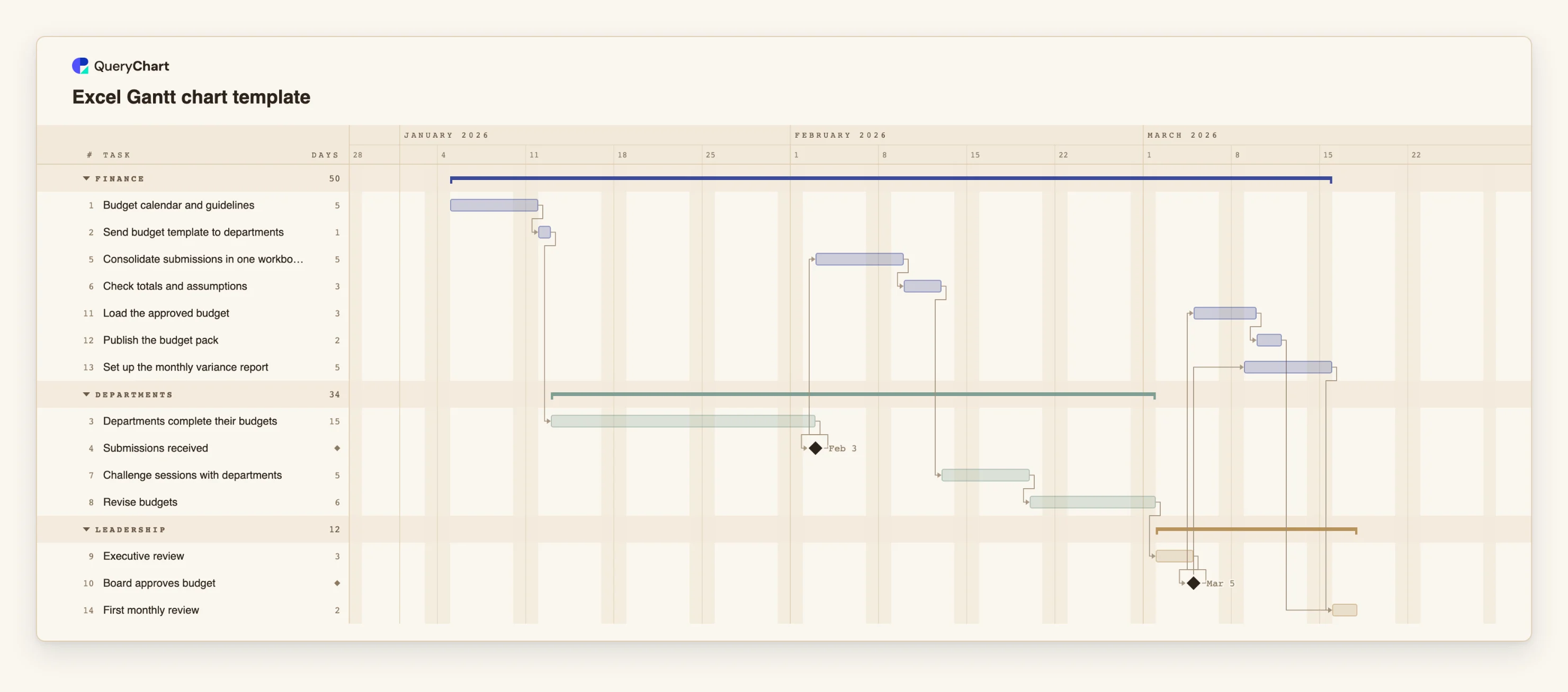
The example below is the Excel Gantt chart template, which groups a budget round by owner: Finance, Departments and Leadership. Its dates are calculated from durations and dependencies, so you can see how long each owner holds the work before passing it on. One distinction matters throughout: a Gantt chart shows who is responsible and when, not who reports to whom. For reporting lines use an org chart, and for a detailed picture of who hands what to whom, a swimlane flowchart.
A budget round grouped by owner
Fourteen tasks in three owner groups. Durations are illustrative. Open the spreadsheet panel to see the Group column behind each stage.
Finance starts, then hands to departments
"Budget calendar and guidelines" (5 working days) and "Send budget template to departments" (1) belong to Finance. "Departments complete their budgets" (15) is in a different group, so the first line to cross a band is also the longest wait. "Submissions received" is a milestone.
Work passes back and forth
"Consolidate submissions in one workbook" (5) and "Check totals and assumptions" (3) return to Finance. "Challenge sessions with departments" (5) and "Revise budgets" (6) go back to Departments. Each change of group is a handoff.
Leadership decides
"Executive review" (3) and the milestone "Board approves budget" sit in Leadership. Nothing in Finance or Departments can move on until that group has finished, which is exactly what a band per owner makes visible.
Back to Finance, with a last handoff
"Load the approved budget" (3), "Publish the budget pack" (2) and "Set up the monthly variance report" (5) are Finance again. "Set up the monthly variance report" is start-to-start with a two-day lag after "Board approves budget". "First monthly review" (2) is Leadership's and waits for both.
How it works
Decide what the groups are
Choose owners rather than phases when the question is who has to act. Name the groups after the team or function, not the person, so the chart still reads correctly when people change.
Put each task in its owner's group
Fill in the Group column. Tasks with the same group name share a band with a summary bar. If you paste from Excel or Sheets, a column headed Group, Phase or Section is matched by name.
Add the person in People
Type a name, or pick a colleague, in the People column or on the People tab of the task card. A name is plain text. Several people can be listed in one cell, separated by commas.
Draw the handoffs as dependencies
Link each task to what it waits for in Depends on. Look at every line that crosses from one group to another: that is a handoff. Give the receiving owner a heads-up, and consider a lag if they need notice.
Read the chart by owner
Hover a bar to see its owner and dates, or turn on the critical path in the View menu to see which owner's tasks set the finish date. The owner of the longest chain is the one to protect.
Share the chart or export it
Share the link with the people named, or export a PDF for a meeting. The CSV export includes Group and People columns for anyone who wants the table.
Mistakes to avoid
Naming a person where a team belongs
If a group is a person, the band disappears when they go on leave or change role. Use the team for Group and the person for People.
Typing an email address without meaning to share
In People, a plain name is just text. A colleague's email address follows the People column's access rule and can give that person access to the chart and notify them, as on any chart. Use names if you only want to label.
Expecting owners on the bars
The bars show progress, not names. Owners appear in the sheet, the hover card and the task card. If a printout must show who owns what, group by owner so the bands carry the names.
One owner for everything
A task with a long list of people has no owner in practice. Name one accountable person and list helpers in Notes, or split the task.
Open the Excel Gantt chart
Open the template, change the groups to your own teams and add names in People.
Related guides
Frequently asked questions
What is the difference between Group and People?
Group places the task in a band, such as Finance, and is the same for every task in that band. People names who is doing the task and can differ for every task. Use Group for the team and People for the person.
Can one task have several owners?
Yes. People holds a comma-separated list. It works better to name one accountable person and put the rest in Notes, because a task with many names tends to have no owner.
Does QueryChart check that people are not overloaded?
No. It does not track effort, capacity or workload on a Gantt chart. You can see two tasks for the same person overlapping, but the check is yours.
Where do I show who reports to whom?
In an org chart. A Gantt chart does not draw reporting lines. For a more detailed picture of handoffs between roles, a swimlane flowchart such as /templates/process-handoff-mapping fits better.
How do I map roles before I plan the dates?
Start with /guides/how-to-map-roles-and-responsibilities to settle who does what, and with /guides/how-to-map-process-handoffs for the handoffs. Then enter the tasks, owners and dependencies in the Gantt chart.