How to make a Gantt chart from Google Sheets
Copy a task table from Google Sheets and paste it into a QueryChart Gantt: how to lay out the columns, what to fix first, how dates and dependencies are read, and what to check afterwards.
If your plan already lives in a Google Sheets table, you do not need to retype it. This guide shows how to shape the table, copy it, paste it into a QueryChart Gantt and check what arrived, so the dependencies move the dates for you.
The short version
- Keep one header row and one task per row, with no blank rows, merged cells or section rows.
- Send Duration in working days and Depends on, and leave Start empty unless a date is truly fixed.
- Show dates as year-month-day before you copy, so they cannot be read the wrong way.
- Copy inputs, not results: skip any column that calculates a finish date from other columns.
- After pasting, read the message about refused cells and check the task numbers in Depends on.
From a table to a plan that moves
Google Sheets has its own chart options. This guide is about something different: a Gantt chart where the dates come from task lengths and links, so a change in one task moves everything after it. A table can list tasks and dates, but it cannot do that by itself, and a start and an end date typed into every row stop being true the moment one of them changes.
The way across is copy and paste. QueryChart does not upload files for Gantt charts, and it does not connect to a Sheets file. You select the table in Sheets, copy it, and paste it into the Gantt sheet. The first line is read for column names, the columns are matched by name in any order, and the header itself is not written. After the paste, the chart and your Sheets file are separate: editing one does not change the other.
Most of the work is in the table. A row with a task name becomes a task, so section titles, totals and blank lines become tasks or are lost. Dates need to be unambiguous, durations must be in working days, and the Depends on column has to point at tasks by name or by their number in the chart. The ten minutes you spend on this before copying are the ten minutes you would otherwise spend fixing refused cells.
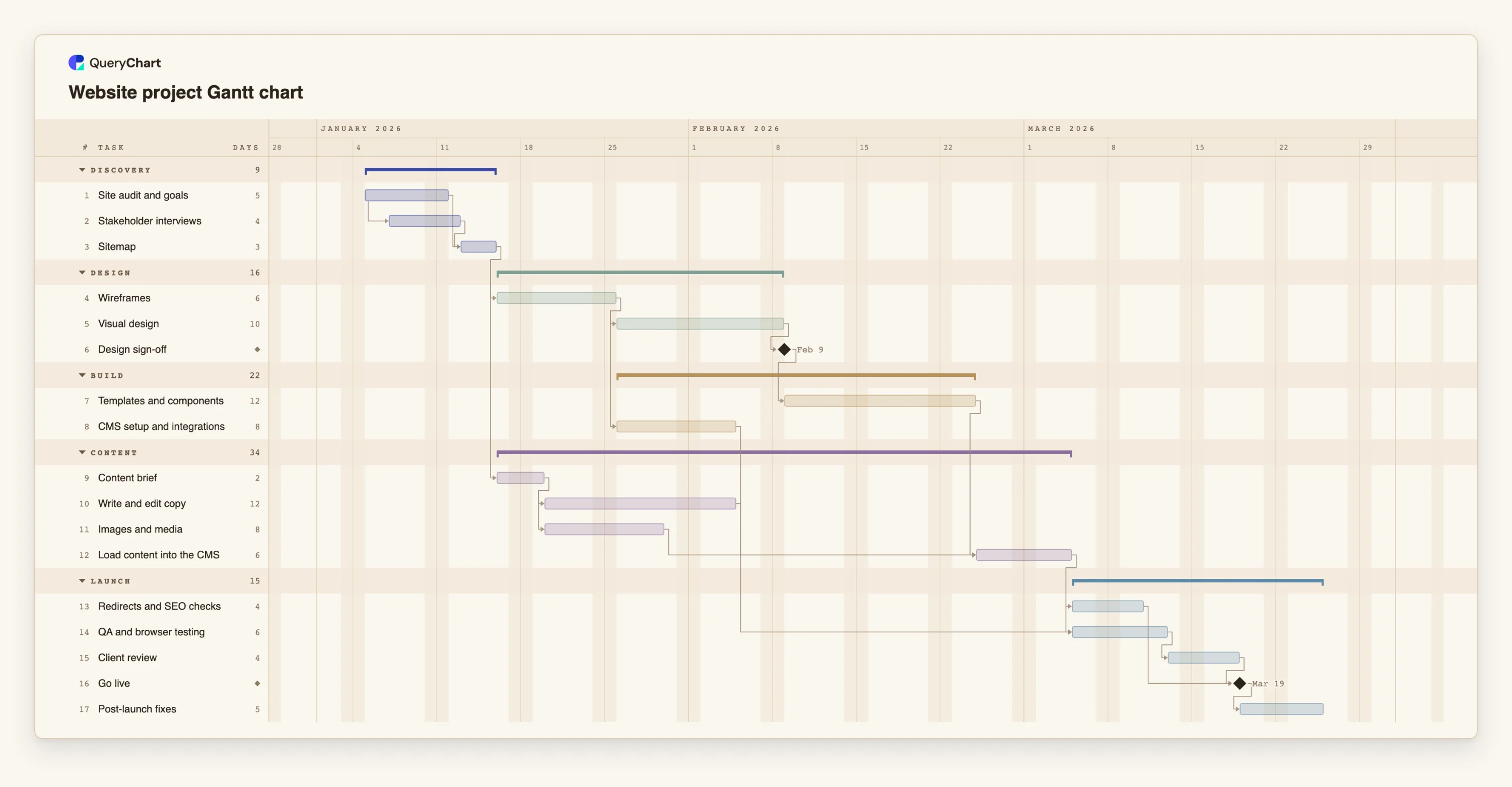
The example is the website project Gantt chart. Think of its seventeen tasks as the rows of a Sheets table: Task, Duration, Depends on and Group are all it needs. If you want the exact formats, read /guides/gantt-chart-data-format. For the Excel and CSV route, see /guides/how-to-create-a-gantt-chart-from-excel-or-csv.
Seventeen rows, as a Sheets table would hold them
Seventeen tasks in five groups. Durations are illustrative. Open the spreadsheet panel to compare each stage with the columns you would paste.
Rows with a lag
"Site audit and goals" lasts 5 days. "Stakeholder interviews" lasts 4 and would be written 1SS+2 in Depends on, so it starts two working days into the audit. "Sitemap" lasts 3 and depends on 1, 2.
Design in a sequence
"Wireframes" (6 days) depends on 3, "Visual design" (10) on 4, and "Design sign-off" has Duration 0, a milestone, with Depends on 5. A plain chain like this is the easiest part of a table to paste.
Build and content in parallel
"Content brief" (2 days) depends on 3, not on the design, so "Write and edit copy" (12) and "Images and media" (8) run beside the build. "Load content into the CMS" depends on 7, 10, 11 and waits for the longest.
The whole table
"Redirects and SEO checks" leads straight to the milestone "Go live", while "QA and browser testing" leads to "Client review" and then "Go live". "Post-launch fixes" (5 days) is the only task after it. Here the Group column holds five phases.
How it works
Shape the table in Sheets
Use one header row with names from the list in /guides/gantt-chart-data-format: Task, Duration, Depends on, Group, and optionally Start, Progress, People, Notes. Delete blank rows, unmerge cells and move phase titles into the Group column. Put the totals row outside the range you will copy.
Convert lengths to working days
Duration must be whole working days, Monday to Friday. If your table has a Start and an End, replace them with a Duration, or keep Start only for tasks with a fixed date. A calculated End column should stay behind: QueryChart works out dates itself.
Make dates and Depends on safe
If you keep any dates, show them as year-month-day, for example 2026-10-20, so they read the same everywhere. In Depends on, write task names or task numbers and optional types and lags, such as 3, 5SS+2. Count tasks, not Sheets row numbers: the header row does not count.
Copy including the header and paste
Select the range with its header row in Sheets and copy it. In the Gantt sheet, click the first Task cell where the tasks should start, then paste. The header line is not written, and new rows are added for pasted names. Start from a new Gantt chart or delete a template's rows first, because a paste overwrites the cells it lands on.
Read the message and fix the source
If a cell was refused, a message names the column and the task number, and says how many more. Correct the cell in Sheets and paste that column again, or type the value in the Gantt sheet. A task with no name is not added, and the message says how many were skipped.
Check the plan and share it
Look at the finish date and switch on the critical path in the View menu to see which tasks decide it. Then share the chart as a link or export it as PDF, PNG, SVG or CSV. The chart is now the plan; keep the Sheets file as the source only if you plan to paste again.
Mistakes to avoid
Pasting a table that is already dated
If every row has a Start, every task is pinned and nothing moves when you change a length. Paste Start only for dates that are fixed from outside, and let the links decide the rest.
Section rows and totals inside the range
A row such as Design phase with nothing else is a task named Design phase. Put phases in a Group column and keep totals out of the copied range.
Dependencies by Sheets row number
Row 12 in Sheets may be task 10 in the chart. Use task names, which must be unique and cannot contain a comma, or count tasks from the first one pasted. Check the Depends on column after the paste.
Status words in a progress column
A column called Status is read as progress, but only 0 to 100, with or without %, or done. Words such as In progress are refused. Use numbers in the source, or leave the column out.
Open the website project Gantt chart
Open the template, paste your own table over its rows and watch the finish date follow your durations.
Related guides
Frequently asked questions
Can I connect a Google Sheet so the Gantt updates?
No. The Gantt is filled by pasting, and there is no link to a Sheets file and no file upload for Gantt charts. After the paste, the chart and the sheet are separate. To update, paste the changed columns again or edit in QueryChart.
Do I need a header row?
It makes the paste much easier. With a header that names at least two known columns, columns can be in any order and the header is not written. Without one, cells are placed by position in the sheet's current column order.
Why was a date refused?
The sheet reads ISO dates, numeric dates in the order of your QueryChart language, and month names. A date with a time, a quarter or a phrase is refused, and so is a day or month that does not exist. Show the column as year-month-day and copy again.
Can I paste only some columns?
Yes. A table with Task and Duration is enough to start, and you can add Depends on and Group later. At least two columns must be recognised for the header to be used.
How do I send the finished chart back to a spreadsheet?
Export the chart to CSV from the download menu, which includes the task, dates in ISO, duration, dependencies and progress. Open the file in any spreadsheet. A PDF, PNG or SVG is better for sharing the picture.