How to create a Gantt chart in Excel, and when a Gantt tool is better
How to make a Gantt chart in Excel with a stacked bar chart, what Excel cannot do (no dependencies, no automatic rescheduling), and how to turn the same task table into a Gantt chart in QueryChart.
Excel has no Gantt chart type. The usual method is a stacked bar chart whose first series is hidden, which draws the bars but knows nothing about dependencies.
The short version
- Excel has no Gantt chart type: the standard method is a stacked bar chart with the start-date series hidden.
- The bars come from typed start dates and durations, so a delay means retyping every date after it.
- Excel does not know about dependencies, milestones, groups or a critical path unless you build them.
- Copy your task table and paste it into QueryChart's Gantt sheet: if the first line names the columns, they are matched by name.
- There is no file upload for Gantt charts yet, and Microsoft Project files are not supported.
How the Excel method works, and where it stops
Excel does not have a Gantt chart in its list of chart types. What people call an Excel Gantt chart is a stacked bar chart built on a table of tasks with a start date and a duration. The first series, the start dates, is made invisible, which leaves the second series, the durations, floating as bars at the right place on a date axis. The task order is reversed so that the first task is at the top. Microsoft also offers Gantt project planner templates, which wrap the same idea in a worksheet with formulas and conditional formatting.
That method is a good fit for a small, simple schedule that does not change much. It is a poor fit when the schedule moves, for one reason: the bars are drawn from the start dates and durations you type, and nothing in the workbook knows that one task depends on another. If task 3 slips by a week you must retype the start of task 4, then task 5, then every task that followed. Dependencies, milestones as a distinct thing, a critical path and a today line are all things you build yourself, with formulas and formatting, or do without.
A Gantt tool turns this round. You enter the lengths and the dependencies, and the dates are calculated. The table you already have in Excel is most of the input: the task names and the durations. The steps below build the Excel version first, so you can see exactly what you get, and then show how to bring the same table into QueryChart. There is no file upload for Gantt charts yet; you copy the rows in Excel and paste them into the sheet beside the chart.
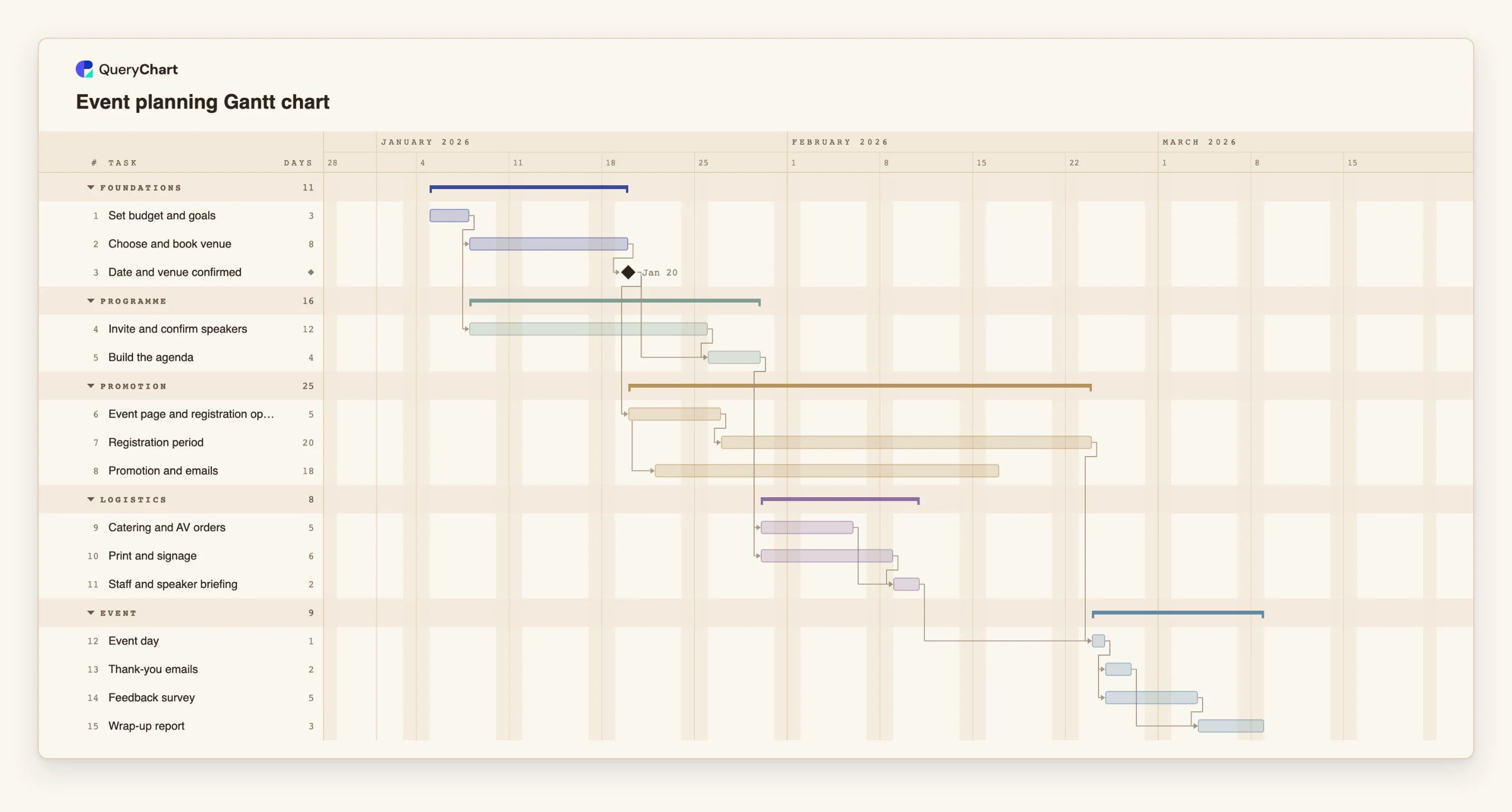
The example below shows the result of that paste for an event plan: a table of tasks, lengths and dependencies, and the schedule that follows.
The same table, as a calculated Gantt chart
An event plan in fifteen tasks. The columns are the ones you would have in Excel: task, group, length and what it waits for. The dates are calculated.
The tasks and their lengths
"Set budget and goals", "Choose and book venue" and "Date and venue confirmed" with lengths of 3, 8 and 0 working days. In Excel you would type a start date for each; here you type only the length and what it follows.
What waits for what
"Invite and confirm speakers" starts after the budget and runs beside the venue, and "Build the agenda" waits for both it and "Date and venue confirmed". "Catering and AV orders" waits for the agenda.
Overlap and join
"Promotion and emails" starts two days after "Event page and registration open", so it overlaps the registration period. "Staff and speaker briefing" and "Registration period" must both be finished before "Event day".
The follow-up, and the date
"Thank-you emails" and "Feedback survey" both follow "Event day", and "Wrap-up report" waits for both. Pin "Event day" to its real date and the chart flags it if the work before it cannot finish in time, which a typed-date Excel Gantt cannot tell you.
How it works
Set up the table in Excel
Put the task names in column A, the start dates in column B and the durations in days in column C. Add an end date in column D if you want it, as start plus duration.
Insert a stacked bar chart
Select the task names, start dates and durations, then insert a stacked bar chart. The start dates and the durations become two series, drawn one after the other.
Hide the start series
Format the first series, the start dates, with no fill. The durations now float at the right place on the axis. Set the axis minimum to the first start date.
Put the first task at the top
Tick the option to plot the categories in reverse order on the vertical axis, so the first task is at the top.
Know what you do not have
The workbook does not link tasks. Add a column of predecessors if you like, but nothing reads it: changing a duration moves no other bar.
Or paste the table into QueryChart
Open a Gantt chart, copy the rows from Excel including the header line, and paste them into the Task column. Task, Start, End, Duration, Depends on, Progress, Group and Owner are matched by their names; the dates are read as ISO dates or in your locale's numeric order, and a value that cannot be read is reported and left out.
Mistakes to avoid
Pasting dates with ambiguous order
A date written 3/4 is read in your locale's order, which may not be the order your spreadsheet used. Format the date column as yyyy-mm-dd in Excel before copying.
Pasting a Status column
QueryChart reads a column named Status as progress, and it understands a percentage or the word Done. Other words such as In progress are not understood and the cell is flagged.
Expecting the Excel dependencies to come across
A Predecessors column is read as Depends on, by task number or name. Dependencies you only drew as arrows or notes in Excel are not in the cells and so do not come across.
Keeping two copies
Once the plan is in QueryChart, edit it there. Editing the Excel copy as well means the two disagree.
Turn your Excel table into a Gantt chart
Open the event plan as your own chart, then paste your own rows into its sheet.
Related guides
Frequently asked questions
Does Excel have a built-in Gantt chart?
No chart type is called Gantt. The standard method is a stacked bar chart with the start-date series hidden, and Microsoft also publishes Gantt project planner templates for Excel.
Can Excel's Gantt chart show dependencies?
Not on its own. The bars are drawn from start dates and durations, and nothing links one task to another unless you write the formulas yourself.
How do I convert an Excel Gantt chart to QueryChart?
Copy the rows of tasks, durations and predecessors from your worksheet, with a header line, and paste them into the Gantt sheet in QueryChart. There is no file upload yet.
What can QueryChart do that Excel cannot?
Calculate every date from lengths and dependencies, support four dependency types with lags, show a critical path, draw milestones and phases, and let you drag bars on the chart. It does not do resource levelling or cost tracking, which a spreadsheet can if you build them.