How to create a Gantt chart: step-by-step guide and template
How to create a Gantt chart step by step: list the tasks, give each a length in working days, say what it waits for, mark the milestones and check the critical path. With an editable template.
A Gantt chart is made from three things per task: a name, a length and what it waits for. Everything else, the dates, the bars and the finish date, is calculated from those.
The short version
- A task needs three things: a name, a length in working days and what it waits for.
- Dates are an output. Enter lengths and dependencies and the schedule is calculated; pin a date only where something outside the project fixes it.
- A milestone is a task of zero length. Use one wherever someone has to approve before work can continue.
- Two tasks that can run at the same time should wait for the same task, not for each other.
- The critical path is the longest chain of dependent tasks. A delay on it moves the finish date; a delay elsewhere may not.
What goes into a Gantt chart, and in what order
Most guides to making a Gantt chart start with a grid of dates and tell you to colour in cells. That is how Gantt charts were drawn on paper, and it is why they are so tedious to change: every delay means moving a bar, then the bars after it, then the ones after those. A Gantt chart built in a tool that knows about dependencies works the other way round. You enter what is true about the project, which tasks exist, how long each takes and which ones have to wait for which, and the bars are the result.
So the steps are about information, not drawing. First the list of tasks. Then a length for each, in working days. Then the dependencies: for each task, the tasks that must finish (or start) before it can. Then the milestones, which are tasks of zero length that mark a decision. Only then do you look at the picture, and what you are looking for is not whether it is pretty but whether the finish date is one you can live with, and which tasks it depends on.
The example below builds a generic project plan in four stages, from a handful of tasks to a complete schedule with phases, milestones and an overlap. Open the spreadsheet panel to see the same rows as a table: the chart and the table are one object, so typing in the table redraws the bars. The plan carries no fixed dates, which is deliberate: it starts on the day you create it, and the dates you see are the ones the lengths and dependencies produce.
A Gantt chart is the right tool when time and order are the question. When the question is who does what, or which path a case takes, a swimlane diagram or a flowchart is better, and QueryChart draws those from the same kind of table.
A project plan, built in four stages
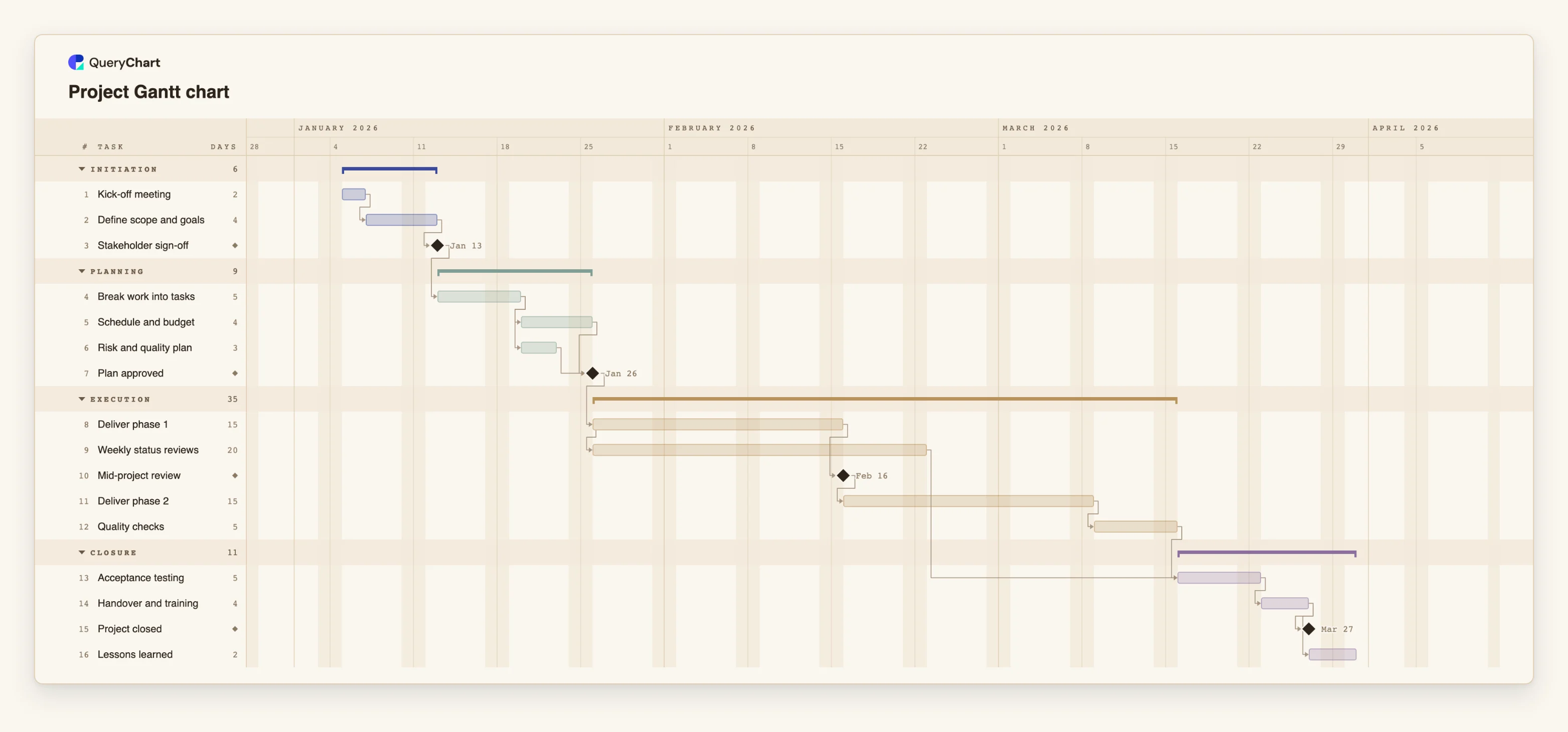
A sixteen-task project plan. Each stage adds more of the same table: open the spreadsheet panel to see the rows behind the bars.
List the tasks and their lengths
Three tasks and a length for each: "Kick-off meeting" takes 2 working days, "Define scope and goals" takes 4, and "Stakeholder sign-off" takes 0, which makes it a milestone. The first task has no predecessor, so it starts on the project's first day.
Say what each task waits for
Planning begins once "Stakeholder sign-off" has happened. "Schedule and budget" and "Risk and quality plan" both wait for "Break work into tasks" and for nothing else, so they run side by side, and "Plan approved" waits for both of them.
Overlap what really overlaps
Delivery follows the approval, but "Weekly status reviews" start together with "Deliver phase 1" rather than after it, a start-to-start link. "Deliver phase 2" waits for "Mid-project review", and "Quality checks" waits for the second phase.
Join the streams and close the project
"Acceptance testing" waits for both "Quality checks" and "Weekly status reviews", so whichever finishes last sets its date. Handover, the "Project closed" milestone and "Lessons learned" complete the plan, and the finish date is now a result you can read off the chart.
How it works
List every task, as work that gets done
Write each task as a short phrase that names an action and an object: "Write requirements", not "Requirements". Aim for tasks of a few days to a few weeks. Smaller than that and you are managing a to-do list; larger and the bar hides the problem.
Give every task a length in working days
Estimate the working time, not the elapsed time, and keep to whole days. A week is 5. If you do not know a length, put in a pessimistic guess and mark it; you can tighten it later and watch what moves.
Say what each task waits for
For each task, list the tasks that must finish before it can start. Leave the first task empty. If two tasks can run at the same time, give them the same predecessor. In QueryChart this is the Depends on column: type the numbers of the tasks, comma-separated.
Add milestones where a decision is needed
A milestone has a length of 0. Put one before each stage that should not start without approval, such as a sign-off or a go / no-go, and make the next stage wait for it.
Group the tasks into phases
Give each task a group, such as Initiation, Planning, Execution and Closure. The chart draws each group as a band with a summary bar, so the phases read at a glance.
Check the finish date and the critical path
Read the finish date off the chart. Then turn on the critical path in the View menu: those are the tasks whose delay moves the end. If the date is too late, shorten or overlap tasks on that path, not elsewhere.
Mistakes to avoid
Typing dates instead of lengths and dependencies
A Gantt chart with every start and end date typed in is a drawing, not a schedule: when one task slips, nothing else moves. Enter lengths and dependencies and let the dates be calculated.
Linking every task to the one before it
A chain of tasks that each wait for the previous one forces everything into a line and hides the work that could run in parallel. Link a task only to what it genuinely needs.
Forgetting the waits outside your control
Approvals, deliveries and reviews take time and do not depend on your team. Give them tasks of their own, with realistic lengths, or the plan will be optimistic by exactly those amounts.
Planning to the day
A task of 7 days is not a prediction, it is a guess. Round, keep a buffer where the uncertainty is highest, and use the chart to see the effect of being wrong.
Create your Gantt chart from this plan
Open the project plan as your own chart, replace its tasks with yours and watch the dates follow.
Related guides
Frequently asked questions
How do I create a Gantt chart?
List the tasks, give each a length in working days, say which tasks each one waits for, and mark the milestones. A Gantt tool then calculates the dates and draws the bars. In QueryChart you can do this in a table beside the chart, or start from the project template and replace its tasks.
Can I make a Gantt chart without dates?
Yes. If you give lengths and dependencies and no fixed dates, the plan starts on the day you create it and every other date is calculated. You pin a date only on a task that something outside the project fixes.
What is the difference between a Gantt chart and a project plan?
A project plan is the whole document: goals, scope, risks, budget and schedule. A Gantt chart is the schedule part, drawn as bars against time with the dependencies between them.
What are dependencies in a Gantt chart?
A dependency says that one task has to wait for another. The usual kind is finish-to-start: the second task starts when the first one ends. QueryChart also supports start-to-start, finish-to-finish and start-to-finish links, each with an optional lag in working days.
Does QueryChart's Gantt chart track cost or resources?
No. It schedules tasks with lengths, dependencies, groups, people and progress. It does not level workloads, track budgets or compare against a baseline plan.