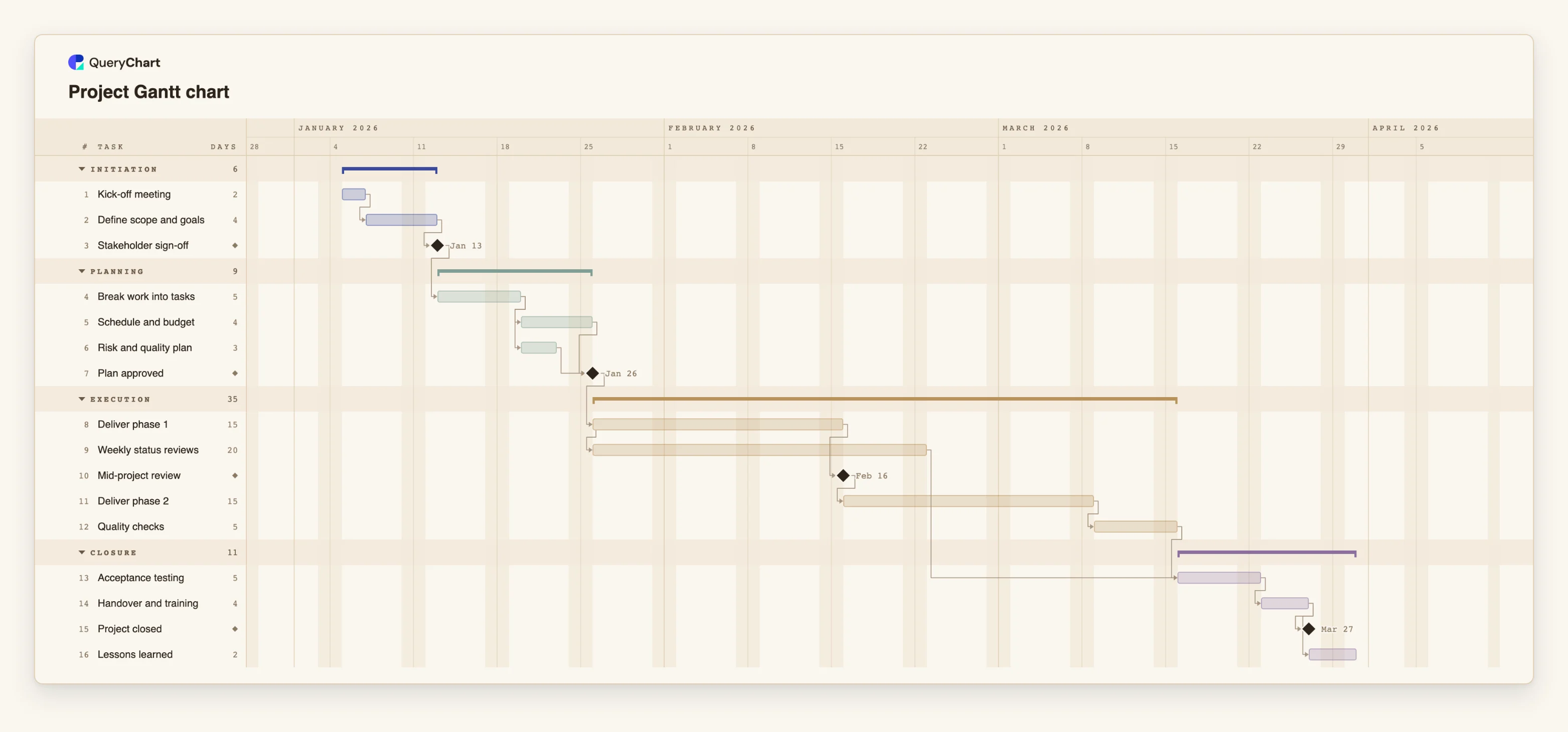
Project Gantt chart template: plan, schedule and milestones
An editable project Gantt chart template: 16 tasks in four phases with dependencies, milestones and a critical path. Change a duration and every later task moves with it.
What the project gantt chart template: plan, schedule and milestones process is
A project plan fails in a predictable way: someone estimates each task separately, the estimates are added up by hand, and the first delay is absorbed by guessing. A Gantt chart fixes the part that is mechanical. You give each task a length in working days and say which tasks it has to wait for, and the dates follow. When one task runs long, everything that depends on it moves, and the ones that do not depend on it stay where they were. That is the whole idea, and it is why the chart is more useful as a calculation than as a picture.
This template is a generic project, so the task names are deliberately plain: define scope, break the work into tasks, deliver in two phases, check quality, accept and hand over. Replace them with your own. What is worth keeping is the shape. Planning waits for a sign-off milestone, delivery waits for an approved plan, weekly status reviews start together with delivery rather than after it, and closure waits for acceptance. The plan has no fixed dates at all: it starts on the day you create it, so the dates you see are yours.
The chart sits beside a table. Each row is a task with its duration, the tasks it depends on and its phase, and you can edit either one. It is the same data as a QueryChart flowchart, read as a schedule instead of a process, so a plan can be duplicated as a flowchart and back. It is not a resource planner: it does not level workloads or track cost, and a task has one length in whole working days.
If your project is a process you will repeat, such as onboarding or an approval, the process flowcharts show the order of work better than a schedule can. The project closure process at /templates/project-closure-process covers what happens after the last task here, and the risk management process at /templates/project-risk-management-process covers the plan the "Risk and quality plan" task refers to.
What this flowchart covers
In this template
- Four phases drawn as groups: Initiation, Planning, Execution and Closure, with 16 tasks across them and a length in working days on every one.
- Four milestones, tasks of zero length: "Stakeholder sign-off", "Plan approved", "Mid-project review" and "Project closed". Each marks a decision rather than work.
- Dependencies that carry the schedule: "Break work into tasks" waits for "Stakeholder sign-off", and "Schedule and budget" and "Risk and quality plan" both wait for it, so they run side by side.
- A start-to-start dependency: "Weekly status reviews" begins together with "Deliver phase 1" and runs alongside it instead of after it.
- A join before closure: "Acceptance testing" waits for both "Quality checks" and "Weekly status reviews", so the longest of the two decides the date.
- No fixed dates. The plan starts on the day you create it, and every date after that is calculated from lengths and dependencies.
When to use this template
- You need a schedule for a project and have a list of tasks and rough lengths, but no dates yet.
- You are asked when the project will finish, and the honest answer depends on which tasks wait for which.
- A stakeholder wants one picture that shows the phases, the decision points and the order of work.
- You have an Excel plan with start and end dates typed in by hand, and every change means retyping the dates below it.
- You are starting a project and want a standard shape to adapt rather than a blank sheet.
The plan, task by task
Every task in the chart with its length in working days and what it waits for. A dependency is a step number; SS is start-to-start, FF is finish-to-finish, and +n is a lag in working days.
| # | Task | Group | Working days | Depends on |
|---|---|---|---|---|
| 1 | Kick-off meeting | Initiation | 2 | |
| 2 | Define scope and goals | Initiation | 4 | 1 |
| 3 | Stakeholder sign-off | Initiation | Milestone | 2 |
| 4 | Break work into tasks | Planning | 5 | 3 |
| 5 | Schedule and budget | Planning | 4 | 4 |
| 6 | Risk and quality plan | Planning | 3 | 4 |
| 7 | Plan approved | Planning | Milestone | 5, 6 |
| 8 | Deliver phase 1 | Execution | 15 | 7 |
| 9 | Weekly status reviews | Execution | 20 | 8SS |
| 10 | Mid-project review | Execution | Milestone | 8 |
| 11 | Deliver phase 2 | Execution | 15 | 10 |
| 12 | Quality checks | Execution | 5 | 11 |
| 13 | Acceptance testing | Closure | 5 | 9, 12 |
| 14 | Handover and training | Closure | 4 | 13 |
| 15 | Project closed | Closure | Milestone | 14 |
| 16 | Lessons learned | Closure | 2 | 14 |
How it works
Rename the phases and tasks
Replace the four phase names and the 16 task names with your own. Keep each task to a few words, written as work that gets done. The table beside the chart is the quickest place to do it: click a cell and type.
Set a length for every task
Enter the duration of each task in working days, so a week is 5. Use 0 for a milestone. Estimate the working time, not the elapsed time, and keep to whole days: the chart does not schedule in hours or half days.
Say what each task waits for
In the Depends on column, list the tasks that must finish before this one can start. Leave it empty for the first task. Where two tasks can run at the same time, give them the same predecessor, as the template does with the schedule and the risk plan.
Use start-to-start where work overlaps
Not every dependency is finish-to-start. A review that runs for the whole of a delivery phase starts when the phase starts, so mark that link start-to-start, as the template does for the weekly status reviews. You can also add a lag in working days to delay a task after the one it follows.
Fix a start date only where the date is real
Leave dates empty and the chart calculates them from the project start. Pin a task to a date only when something outside the project sets it, such as a contract signature or a fixed event. Every extra fixed date is a place where the plan can contradict itself.
Check the critical path, then share the plan
Turn on the critical path in the View menu to see the chain of tasks that sets the finish date. A delay anywhere on that chain moves the end of the project; a delay elsewhere may not. Then share the chart or export it as a PDF, an image or a CSV.
Frequently asked questions
What is a project Gantt chart?
A project Gantt chart is a bar chart of a project's tasks against a calendar. Each task is a bar that starts on one date and ends on another, and lines between bars show which tasks depend on which. It answers three questions at a glance: what happens when, what has to finish before something else can start, and when the whole project ends. In this template the dates are calculated from each task's length and its dependencies, so changing one task updates the rest.
How do I make a Gantt chart from this template?
Open the template and edit it in place: rename the tasks, set each task's length in working days, and list what each task depends on. The bars and dates update as you type. You can try it without an account, and creating a free account keeps your changes so you can share the chart, export it and come back to it later.
Does the template include dates?
No. It deliberately carries no fixed dates, so the plan starts on the day you create it and every later date is calculated. If something in your project has to happen on a particular day, such as a contract signature, you can pin that one task to a date and the tasks that depend on it will follow.
What is the critical path?
The critical path is the longest chain of dependent tasks from the start to the end of the project. Because each task on it waits for the one before, a delay to any of them delays the finish, while a delay to a task off the path may be absorbed. You can switch it on in the View menu to see which tasks it covers.
Can I use this template with Excel or CSV data?
You can paste a table into the sheet beside the chart: tasks, lengths and what each depends on. Dates are read as ISO dates or in your locale's numeric order, so use yyyy-mm-dd to be safe. There is no file upload for Gantt charts yet, so copy the rows from your spreadsheet and paste them in.
What does a Gantt chart not show?
It shows the order and timing of work, not who is overloaded or what it costs. This template does not level resources, track budgets or compare against a baseline plan. For a project that needs those, use the Gantt chart for the schedule and keep workload and cost in a separate tool.