Gantt charts in project management: what they show and what they leave out
How a Gantt chart fits project management: the schedule view beside scope, risk and status reporting, and what QueryChart's Gantt does and does not cover for a project manager.
A project manager keeps several things in view: scope, schedule, risk, people and status. A Gantt chart covers one of them, the schedule, and does it well. This guide shows where it fits and where it stops.
The short version
- The Gantt is the schedule view; scope, risk and budget live elsewhere in the plan.
- The critical path shows which delays move the end date.
- Progress and the finish date support a one-picture status report.
- QueryChart covers whole working days, four dependency types, milestones, groups, people and progress.
- Not covered: baselines, resource levelling, cost tracking, holiday calendars and Microsoft Project files.
One view of the project, not the project
In project management the Gantt chart is the schedule view. It lists the tasks, shows how long each takes and which depends on which, and gives the finish date. It is useful early, to test whether a plan is believable, and during delivery, to see what moves when something slips. The critical path, the chain of tasks that sets the end date, shows where a delay matters and where there is slack.
It relates to the rest of management practice in specific ways. Scope decides which tasks exist, so scope changes should change the chart. Risk shows up as a reason to add a buffer task or to choose a different order. Status reporting uses progress and the finish date: a chart with progress filled in and the critical path switched on lets you report in one picture whether the end date still holds.
QueryChart's Gantt covers the schedule: tasks in whole working days (Monday to Friday), four dependency types with lag or lead, milestones, groups as phases, people, a progress percentage and notes on each task. It shows the critical path as a toggle, exports as PDF, PNG, SVG and CSV, and can be shared as a link, with comments, approvals and version history. It does not do baselines or planned-versus-actual comparison, resource levelling, cost tracking, holiday calendars or Microsoft Project files.
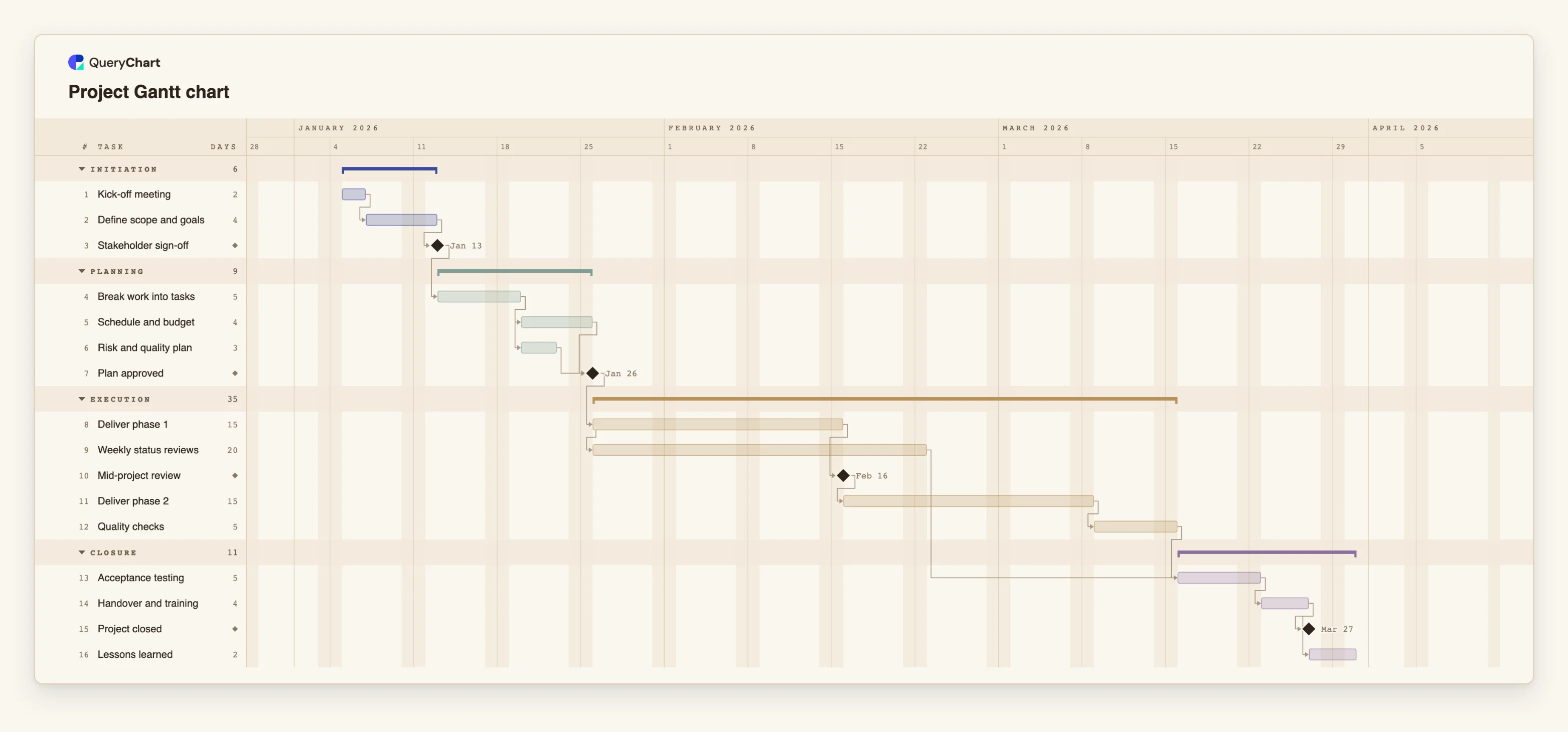
The example is a generic project with a plan approval gate, two delivery phases and a handover.
A generic project from kick-off to lessons learned
Sixteen tasks in planning, two delivery phases and closure. Switch on the critical path to see the chain that sets the end date.
Initiate and get sign-off
"Kick-off meeting" takes 2 working days and "Define scope and goals" 4. "Stakeholder sign-off" has a length of 0: a milestone marking the decision to proceed.
Plan, then approve
"Break work into tasks" takes 5 days, then "Schedule and budget" (4) and "Risk and quality plan" (3) run in parallel. "Plan approved" is a milestone that waits for both.
Deliver with ongoing reviews
"Deliver phase 1" takes 15 days, and "Weekly status reviews" starts with it and runs 20 days. "Mid-project review" is a milestone after phase 1.
Finish and close
"Deliver phase 2" (15 days) and "Quality checks" lead to "Acceptance testing", which also waits for the status reviews. "Handover and training" is followed by the "Project closed" milestone and "Lessons learned".
How it works
Fix the scope before the schedule
List what the project must deliver. Every task in the chart should trace back to something in scope.
Enter tasks and lengths
Add one task per row with a length in whole working days. Leave dates empty and let them be calculated.
Add dependencies and milestones
Link tasks in Depends on, using SS, FF or SF with a lag where work overlaps. Mark gates and handovers with a Duration of 0.
Group into phases and assign owners
Use Group for phases and People for owners, so the chart matches the way you report.
Turn on the critical path
Use View, then Critical path. It lights the chain that sets the finish date, so you know where a slip hurts.
Update progress and report
Enter progress as work happens, then share the chart as a link or export a PDF for the status report. Comments and version history help to record what changed.
Mistakes to avoid
Expecting baselines or slip tracking
The chart does not compare the plan against an earlier version. If you need that, export a PDF or CSV at each approval and keep it.
Using the Gantt to manage resources
People can be assigned to tasks, but overlapping assignments are not flagged. Check workload separately.
Planning in calendar days
Durations are whole working days, Monday to Friday, and there is no holiday calendar. Add buffer or a task for known closures.
Letting the chart go stale
A schedule nobody updates is worse than none. Agree who updates progress and how often.
Plan a project as a Gantt
Open the project template as your own chart, replace its tasks with yours and turn on the critical path.
Related guides
Frequently asked questions
Is a Gantt chart enough for project management?
No. It covers the schedule. You also need scope, risk, people and budget, which sit in the project plan and other tools.
Does QueryChart show the critical path?
Yes, as a toggle under View. It lights the chain of tasks that sets the finish date. It is off by default.
Can I compare planned and actual dates?
No. There are no baselines. Progress is recorded as a percentage; to keep a record of an earlier plan, export it.
Can I import a Microsoft Project file?
No. You can copy rows from a spreadsheet and paste them in, and export as CSV, but .mpp and XML files are not supported.
Can my team comment on the chart?
Yes. Comments, approvals and version history work as on any QueryChart chart, and you can share it as a link.