How to track progress on a Gantt chart without moving dates
Record percent complete on each Gantt task, read the filled bars, and learn what progress does and does not change. Progress is drawn on the bar; the dates come only from durations and dependencies.
Progress on a QueryChart Gantt is a number from 0 to 100 on each task, drawn as a filled part of the bar. It tells readers how much is done. It never moves a date, and knowing that makes the column much easier to use well.
The short version
- Progress is a whole number from 0 to 100 per task, drawn as a filled part of the bar.
- It never changes dates: only durations, dependencies and fixed Start dates do.
- Milestones have no bar to fill, so progress is not drawn on them.
- Read status by comparing the fill of a bar with the today line.
- Pasted status words are read as progress only when they are a number, a percent or "done".
Percent complete is a record, not a schedule input
Each task has an optional Progress value, a whole number from 0 to 100. You can type it in the Progress column of the sheet, set it with the slider in the task card, or drag the progress marker along the bar on the canvas. Dragging snaps to steps of 5. The bar then shows a solid fill for the part that is done, with the rest left as a lighter track, and while a task is between 1 and 99 percent the value is written beside the bar.
What progress does not do is as important. The schedule is calculated from durations, dependencies and any fixed Start dates, and nothing else. A task at 100 percent keeps its bar where it was, and the tasks that depend on it still start when its dependency says they start. Finishing early does not pull later work forward, and being behind does not push it back. If reality has changed the dates, change the duration, the dependency or the fixed Start, and the chart will recalculate.
That makes progress a clear statement of status rather than a forecast. A reader opens the chart, sees how far each bar is filled, and compares that with the today line. A bar that is mostly filled and well to the left of today is on track. A bar that is barely filled and already crossed by today needs a conversation. The chart does not calculate that comparison for you and does not keep an original plan to compare against, so the judgement stays with the person reading it.
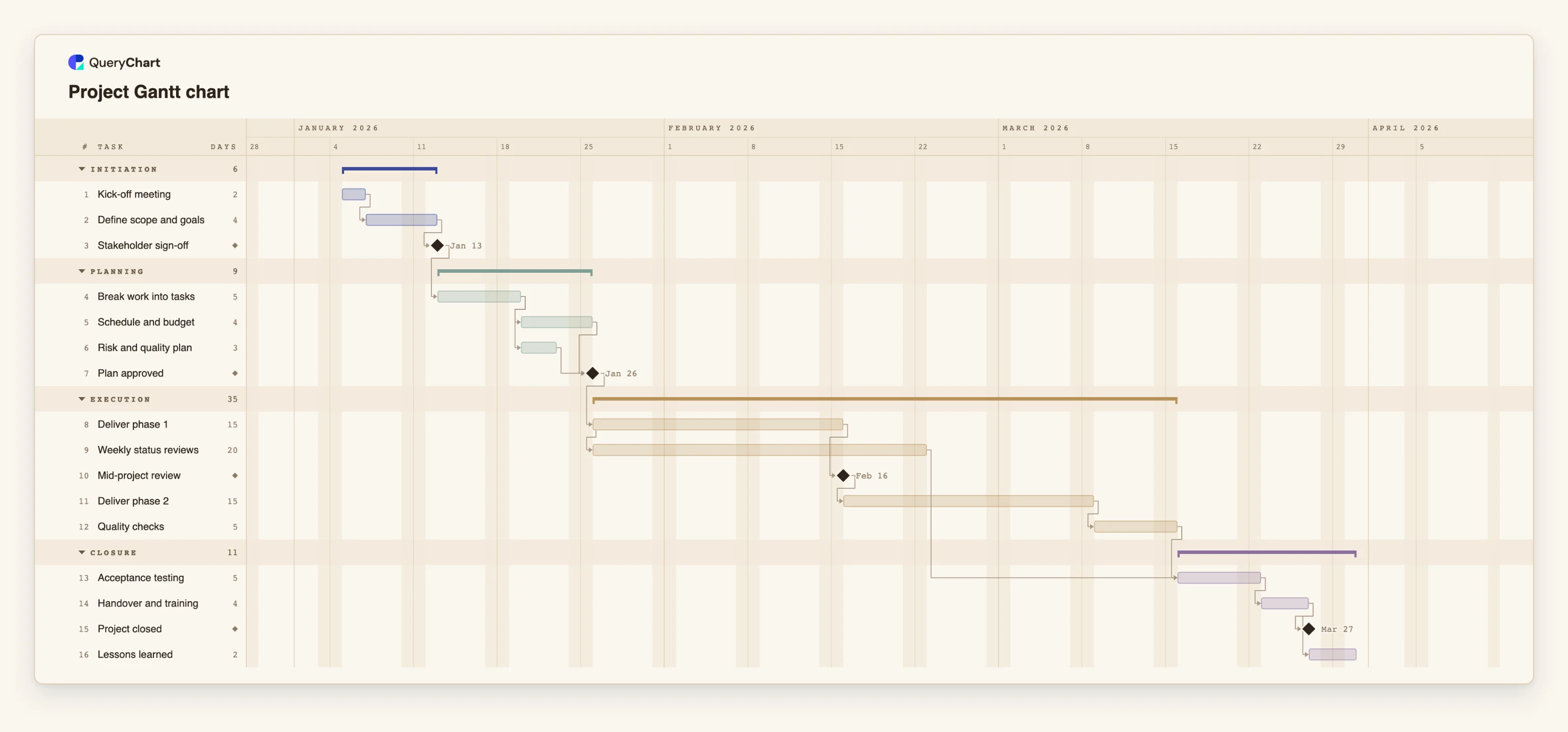
The example below uses the project Gantt template at /templates/project-gantt-chart. The template ships with no progress set, so everything here is something you add. For how the dependencies in that chart decide the dates, see /guides/gantt-chart-dependencies.
Progress on a project plan, step by step
Sixteen tasks. The template has no progress values; the notes say where to add them. Open the spreadsheet panel to see the rows behind each stage.
Finished planning work
"Kick-off meeting" (2 working days), "Define scope and goals" (4) and "Break work into tasks" (5) are real bars. Set them to 100 and they fill completely. "Stakeholder sign-off" and "Plan approved" are milestones of length 0, so a progress value on them is not drawn.
A task under way
"Deliver phase 1" is 15 working days. Set its Progress to 40 and 40 percent of the bar is solid, with 40% written beside it. "Weekly status reviews" (20 days) starts when "Deliver phase 1" starts, so changing the progress of one does not move the other.
Done early does not pull work forward
"Acceptance testing" waits for "Weekly status reviews" and for "Quality checks". The reviews end 15 working days before "Quality checks" does. Mark the reviews 100 percent today and "Acceptance testing" still starts when "Quality checks" ends, because progress is not read by the schedule.
Reading the whole plan
With no task selected, the plan panel shows overall progress, weighted by task duration. Tasks with no value count as 0 and milestones count for nothing. "Project closed" and "Lessons learned" sit at the end, so they stay empty until the work before them is done.
How it works
Add the Progress column values
In the sheet, type a number from 0 to 100 in the Progress column of a task, with or without a percent sign. Leave the cell empty for no value. The same field is a slider in the task card.
Drag the marker when you are on the canvas
Select a task bar and drag its progress marker to the right place. It snaps to steps of 5, and the result is written to the Progress column, so the sheet and the bar always agree.
Keep progress about the work, not the calendar
Set the percent from how much of the task is done, not from how much time has passed. Time passing is what the today line shows. Comparing the two is the whole point of recording progress.
Change the dates with the things that set them
If a task is taking longer, raise its duration. If it must wait for something new, add the dependency. If it has a hard date, set a fixed Start. Progress stays as you recorded it.
Read the chart with the today line
Press T or choose Today to bring the today line into view. Look at every bar that line crosses and ask whether its fill matches how far through the task it is. Open the hover card for the exact value.
Share or export the current state
Share the chart as a link so everyone reads the same fill, or export a PDF or PNG for a status report. The CSV export includes a Progress (%) column for each task.
Mistakes to avoid
Expecting a finished task to pull the plan in
A task at 100 percent keeps its original dates and its successors still wait for the dependency as written. To let later work start sooner, shorten the duration of the finished task to what it actually took.
Letting progress follow the calendar
Setting a task to 50 percent because half the time has gone hides exactly the information the column exists to show. Record the share of the work that is done, even when it is a rough number.
Pasting status words that are not numbers
A Status column is matched to Progress, but a value such as In progress or Blocked is not a number, so that cell is refused and the rest of the row is still written. Convert the words to percentages before you paste.
Expecting a record of the original plan
QueryChart does not store the first version of the dates to compare with the current one, and it does not mark tasks as late. Export a PDF before you change the plan if you need to show how it moved.
Open the project Gantt chart
Open the project plan template, set progress on a few tasks and watch the bars fill while the dates stay put.
Related guides
Frequently asked questions
Does setting progress change the start or finish date of a task?
No. Dates come from durations, dependencies and fixed Start dates. Progress is only drawn on the bar, shown on the hover card and included in the CSV export.
What values can I paste into the Progress column?
A whole number from 0 to 100, with or without a percent sign, or the word done, which is read as 100. A decimal such as 0.5 is refused, and so is a number above 100. The column headers Progress, Complete, Percent complete, Done and Status are all matched to it when you paste a table with a header line.
Why does a milestone show no progress?
A milestone has a duration of 0 and is drawn as a diamond, so there is no bar to fill. Mark the task before it as done and use the milestone as the checkpoint.
Can I see the overall progress of the project?
Yes. Click an empty part of the canvas so no task is selected and the plan panel shows one overall percentage, weighted by task duration. Tasks with no progress count as 0.
How do I show that a task is late?
Compare the fill of its bar with the today line, and then change what is true: lengthen the duration or add the dependency that explains the delay. See /guides/gantt-chart-critical-path to find which delays move the finish date.