How to set the start date, date range and time scale of a Gantt
See how a QueryChart Gantt chooses its start date, what range the canvas draws, how Day, Week, Month and Auto scales differ, what a fixed Start does and where the today line and weekend shading appear.
A QueryChart Gantt has no start and end date to fill in. The plan starts on a day it works out, the range follows the tasks, and you choose how closely to look with the time scale. This guide explains each rule so the dates never surprise you.
The short version
- With no fixed Start, the plan starts on the day the chart was created, moved to a working day.
- The plan starts on the earliest fixed Start; pinning a later task keeps the first task where it is.
- Auto picks Day up to 45 calendar days, Week up to 200, Month up to 900, then Quarter.
- The scale is per reader and per browser, not saved on the chart.
- Weekends are shaded on Day and Week only, and the today line shows only when today is in the drawn range.
Where the dates of a plan come from
Dates are an output. If no task has a fixed Start, the plan begins on the day the chart was created, or on the next working day if that was a weekend, and every task with nothing to wait for starts there. Each other task starts as soon as its dependencies allow. The finish of the plan is simply the end of the last task. To move the whole plan, you do not edit the dates, you pin the first task's Start.
A fixed Start is the one input that overrides this. When any task has one, the plan begins on the earliest fixed Start in the chart, not on the day the chart was created. So when you pin a later task in a plan with no fixed dates, the first task is given a fixed Start on the day it already starts, and only the pinned task and what waits for it move. A fixed Start that falls on a weekend moves to the next Monday. A fixed Start that is earlier than a dependency allows is drawn where you put it and flagged with the earliest date the dependency permits.
The canvas then draws the plan's range with one unit of padding on each side, and the time scale decides how wide a day is. Day, Week, Month and Quarter are fixed choices, and Auto picks one from the length of the plan. The scale is a view preference stored in your browser for that chart, so a colleague can read the same plan at a different zoom, and exports use your own choice. Weekends are shaded on the Day and Week scales only.
The example is the construction template at /templates/construction-gantt-chart, which is long enough for the scale to matter. For how the dependencies produce the dates, see /guides/gantt-chart-dependencies, and for the quickest way to build a plan from a spreadsheet, /guides/how-to-create-a-gantt-chart-from-excel-or-csv.
A long plan and its time scale
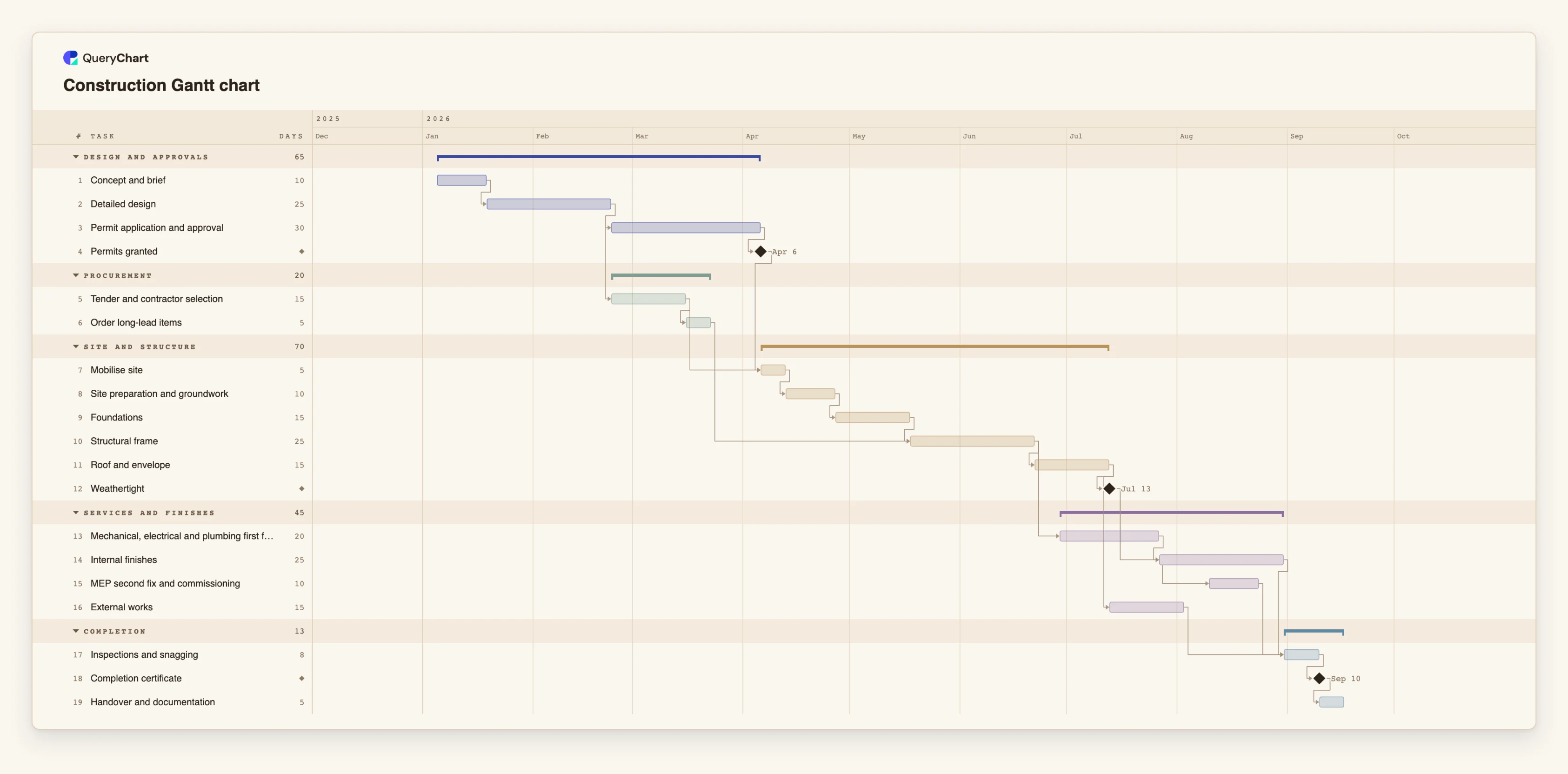
Nineteen tasks, about 183 working days from the first task to the last. Durations are illustrative. Open the spreadsheet panel to see the rows behind each stage.
The first thirteen weeks
"Concept and brief" (10 working days), "Detailed design" (25) and "Permit application and approval" (30) run in a line and end at the "Permits granted" milestone, 65 working days in. No task has a fixed Start, so "Concept and brief" begins on the plan's start day.
A fixed date meets a dependency
"Mobilise site" waits for "Tender and contractor selection" and for "Permits granted", so the later of the two sets its start. Pin its Start to an earlier date and the bar stays where you put it, flagged with the earliest day the permits allow.
Weeks, weekends and a bar
"Structural frame" is 25 working days, five calendar weeks. On the Day and Week scales its bar crosses the shaded weekends, which are not counted in the 25. On the Month scale weekends are not shaded and the same bar is a short block.
Why Auto picks Month here
From "Concept and brief" to "Handover and documentation" is 183 working days, about 255 calendar days. That is over 200, so Auto draws the Month scale; the first thirteen weeks alone would have drawn Week. Choose Week in the toolbar to see the detail.
How it works
Decide whether any date is genuinely fixed
List the dates that cannot move, such as a delivery, a booking or a regulatory deadline. Leave every other task without a Start. Fewer fixed dates give a plan that recalculates when something changes.
Pin only those dates in the Start column
Type the date in the Start column. Use a form that cannot be misread, such as 2026-04-03 or 3 April 2026, because a date such as 3/4 is read in the order of your language and can come out as 4 March or 3 April. A date on a weekend moves to Monday.
Check where the plan now begins
Read the first bar and the plan panel. The plan starts on the earliest fixed Start in the chart. If that is not the start you meant, one of the fixed dates is earlier or later than you intended.
Choose a time scale for the question you are asking
Use Auto for the whole picture, Week or Day to check the next few weeks, and Month or Quarter to present a long plan. The control is in the toolbar and under View, and it only changes your own view.
Bring today into view
Press T or choose Today to pan the today line into view. The line and its date chip appear only when today falls inside the range the canvas draws.
Export at the scale readers need
PDF, PNG and SVG exports use the scale you have chosen and mark today on the day you export. Switch to the scale first, then export.
Mistakes to avoid
Pinning a task to a date far from the rest
A fixed Start on the first task moves the whole plan, so a date months ahead typed into that row carries every task with it. A fixed Start on a later task moves only that task and what waits for it, and leaves a gap the plan does not need. Pin only where a date is real.
Typing dates that can be read two ways
A date such as 3/4 is read in the order of your language, and it means different days in different countries. Use the year-first form or spell out the month.
Expecting holidays or custom weeks
Working days are Monday to Friday. There is no holiday calendar and no other working week, so a public holiday still counts as a working day. Lengthen the task or add a lag where it matters.
Reading the scale as part of the plan
Changing between Day and Month alters how the plan looks to you, not any date in it. Do not compare screenshots at different scales as if the plan had changed.
Open the construction Gantt chart
Open the construction plan template, switch between Week and Month and pin one Start to see the plan's start move.
Related guides
Frequently asked questions
How do I choose the start date of a Gantt chart in QueryChart?
Give the first task a fixed Start in the Start column. The plan then begins on the earliest fixed Start in the chart. With no fixed Start, the plan begins on the day the chart was created.
Can I set an end date for the whole project?
Not as an input. The finish is calculated from the tasks. Type a Finish on a single task to set its duration, and compare the plan's finish date with the date you need.
Which time scales are available?
Auto, Day, Week, Month and Quarter. Auto uses Day for plans up to 45 calendar days, Week up to 200, Month up to 900 and Quarter beyond that.
Why is there no today line on my chart?
The line is drawn only when today falls inside the range the canvas shows, which is the plan with one unit of padding either side. A plan that began long ago or starts later than today may not include it.
Are weekends shown?
Saturdays and Sundays are shaded on the Day and Week scales and are not counted in durations. On Month and Quarter they are not shaded.