How to add buffer time to a Gantt chart
Add buffer time to a Gantt chart without padding every task: use an explicit buffer task or a lag, put it where a delay would cost most, and see how much room the plan already has.
Buffer time is the room you leave for things going slightly wrong. On a Gantt chart it works best as something you can see and name, placed on purpose, and not as a few extra days quietly added to every bar.
The short version
- Keep each task's estimate plain, and hold the reserve in a few named places.
- A buffer is either a task with a length or a lag on a dependency; use a task when it needs a name and an owner.
- Put the buffer at the end of a chain, just before a date you cannot move.
- Check how much room the plan has before adding more: tasks off the longest chain can already slip.
- QueryChart does not track buffer consumption, so write the rule for spending it in the task notes.
Make the reserve visible
The usual way to protect a plan is to pad: each owner adds a day or two to their own estimate. The plan then looks safe, but nobody can tell how much reserve exists, where it sits or who may spend it. Padded time also tends to be used up by the task that carries it, whether or not that task needed it, so the reserve is gone before it reaches the place where a delay actually hurts.
A more useful habit is to keep estimates plain and to hold the reserve separately, in one or two places you can point at. On a Gantt chart there are two ways to do that. One is a buffer task: a task with a length, a name such as "Contingency before briefing" and a place in the chain. The other is a lag on a dependency, such as 10+3, which makes the next task start three working days after the previous one finishes. A task is visible and can have an owner and progress. A lag is lighter, but it shows only as a gap between bars.
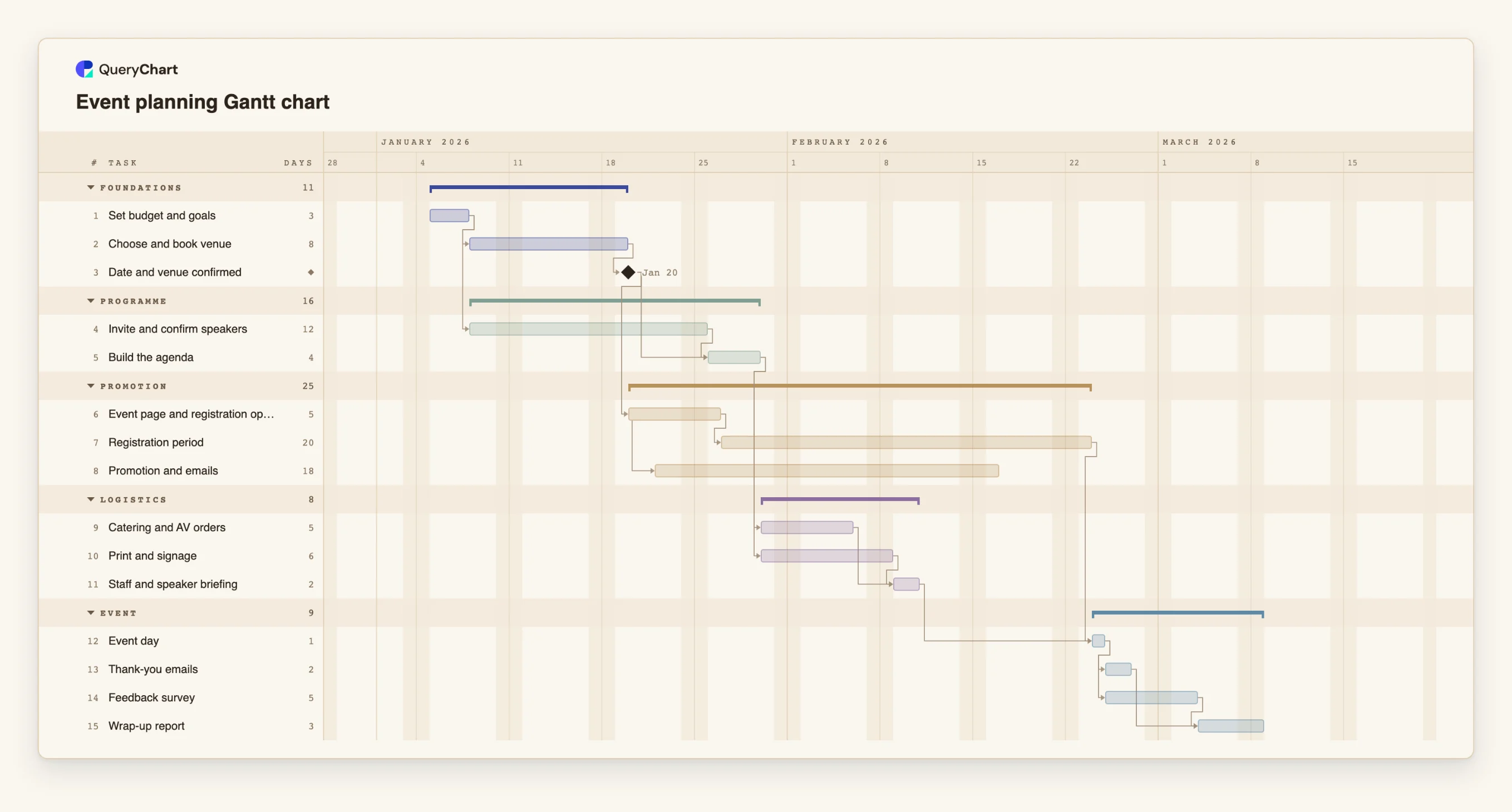
Before adding anything, look at what the plan already has. Tasks that are not on the longest chain can slip by some days without moving the finish, so part of your reserve may exist already. The example below is an event plan with no buffer task in it. Its preparation work ends well before the part that cannot move, which shows where a buffer belongs and how much of it the plan can absorb. For the underlying mechanics see /guides/gantt-chart-critical-path and /guides/gantt-chart-dependencies.
QueryChart has no buffer feature. There is no shared buffer that is used up as tasks slip, and no report of how much is left. A buffer here is a task or a lag that you add and keep honest yourself. The point of the guide is to do that deliberately.
Where a buffer would go in an event plan
Fifteen tasks. Durations are illustrative; set your own. The chart has no buffer task; the stages show where one belongs. Open the spreadsheet panel to see the rows behind each stage.
Plain estimates, no padding
"Set budget and goals" is 3 working days and "Choose and book venue" is 8. "Date and venue confirmed" is a milestone of length 0. If the venue task were padded to 10 days, the two extra days would sit inside the bar where no one could see or plan to spend them.
Waiting time is not buffer
"Registration period" is 20 working days and follows "Event page and registration open" (5 days). "Promotion and emails" (18 days) starts 2 days after that page opens. Nobody works for a whole registration period, but it is a real length and sets how early "Event day" can be, so it is not reserve.
The preparation chain already has room
"Invite and confirm speakers" (12), "Build the agenda" (4), "Catering and AV orders" (5), "Print and signage" (6) and "Staff and speaker briefing" (2) form a chain that finishes about 9 working days before the registration period ends. That room is a reserve you did not have to add.
Spend the room on purpose
"Event day" waits for both "Registration period" and "Staff and speaker briefing". A task such as "Contingency before briefing" of 5 days, placed between the two order tasks and the briefing, would use 5 of those 9 days and leave 4. "Thank-you emails", "Feedback survey" and "Wrap-up report" follow the event and need none.
How it works
Keep every estimate plain
Ask owners for the length of the task as they expect it to go, not the length they would be comfortable promising. Write that in Duration. Padding is hard to see and hard to take back later.
Find the date that cannot move
Mark it with a milestone of length 0, for example the opening of an event or an approval a customer is waiting for. A buffer is only worth having in front of something that matters, so decide what that is first.
See how much room the plan has
Switch on the critical path under View. The lit chain sets the finish; tasks off it can slip some days without moving anything. Compare the end of the shorter chain with the point where it joins the longer one, and treat the difference as reserve you already hold.
Add the buffer as a task or a lag
To add a task, insert a row at the end of the chain, name it for what it protects, give it a Duration and make the next task depend on it. For a lag, write it in Depends on, for example 10+3, which starts the next task three working days after task 10 finishes.
Write down who may spend it
Put the rule in the task's Notes: which delays it covers, who decides to use it, and what happens to the date if it runs out. Set its Progress as it is used, so the chart shows what is left.
Review it when the plan changes
When a chain gets longer or a fixed date moves, the amount of room changes with it. Recheck the critical path, and export a PDF of the plan before you rework a buffer so the earlier version is kept.
Mistakes to avoid
Padding every task
A few days added to each bar looks cautious but spreads the reserve thinly across the whole plan and hides it. Owners then work to the padded date, and the reserve is gone before the end of the chain, where it was needed.
Putting the buffer where it protects nothing
A buffer on a chain that already has room only uses up room. Put it after the work that can go wrong, on or just in front of the chain that sets the finish, and in front of a date you cannot move.
Counting waiting time as buffer
A review window, a registration period or a supplier lead time is a real length even if nobody works through it. Give it its own task and a realistic length, and keep reserve as a separate thing.
Expecting the tool to manage it
QueryChart does not track how much of a buffer has been used. If you need to show the plan before and after a buffer was spent, export a PDF first and keep it with the record.
Open the event Gantt chart
Open the event planning template, add a buffer task before the briefing and see how much room is left.
Related guides
Frequently asked questions
How much buffer should a Gantt chart have?
There is no right percentage. Base it on how similar jobs have gone for your team, and spend it where the cost of being late is highest. Start small, place it deliberately and adjust after the next project.
Should buffer be a task or a lag?
Use a task when it needs a name, an owner or visible progress, because a task appears as its own bar. Use a lag, such as 10+3 in Depends on, when you only need a short, fixed gap and nobody works on it.
Why did my buffer task not move the finish date?
The chain it sits on had room. A task that is not on the longest chain can grow until it uses that room before the finish moves. Switch on the critical path to see which chain sets the date.
Can I fix a date instead of adding a buffer?
A fixed Start pins one task to a date. It does not protect it: if a predecessor runs late, the chart flags a conflict and names the earliest date the dependency allows. A buffer in front of the task is what absorbs the delay.
Where do I plan for the risks a buffer covers?
For the risks a buffer is meant to cover, see the flowchart at /templates/project-risk-management-process. Use the Gantt for timing and the flowchart for the logic; /guides/use-flowchart-and-gantt-together shows how.