What happens to a Gantt chart when a task is delayed
See how a delayed task moves the rest of a Gantt chart: which slips change the finish date, what a fixed start and a conflict flag mean, and what to change in the plan once the new date is clear.
When a task runs late, the question is not only how long the delay is but whether it matters. This guide shows how a slip travels through dependencies, why some delays change nothing, and what to do when the new finish date is not acceptable.
The short version
- A delay is a change to a duration or a fixed Start; the dates are recalculated from it.
- A slip on the longest chain moves the finish day for day; a slip elsewhere is absorbed until the room runs out.
- Dragging a bar to move it fixes that task's Start, so use it deliberately.
- A fixed Start earlier than a dependency allows is drawn where you put it and flagged as a conflict with the earliest allowed date.
- There is no baseline or slip report: export a PDF before you change the plan.
A delay is a change to a number
In a Gantt chart whose dates come from dependencies, a delay is a change to one number, usually a duration or a start. The schedule is then recalculated: every task that waits for the changed one moves, and tasks that do not wait for it stay where they are. How far the finish date moves depends on whether the changed task sits on the longest chain.
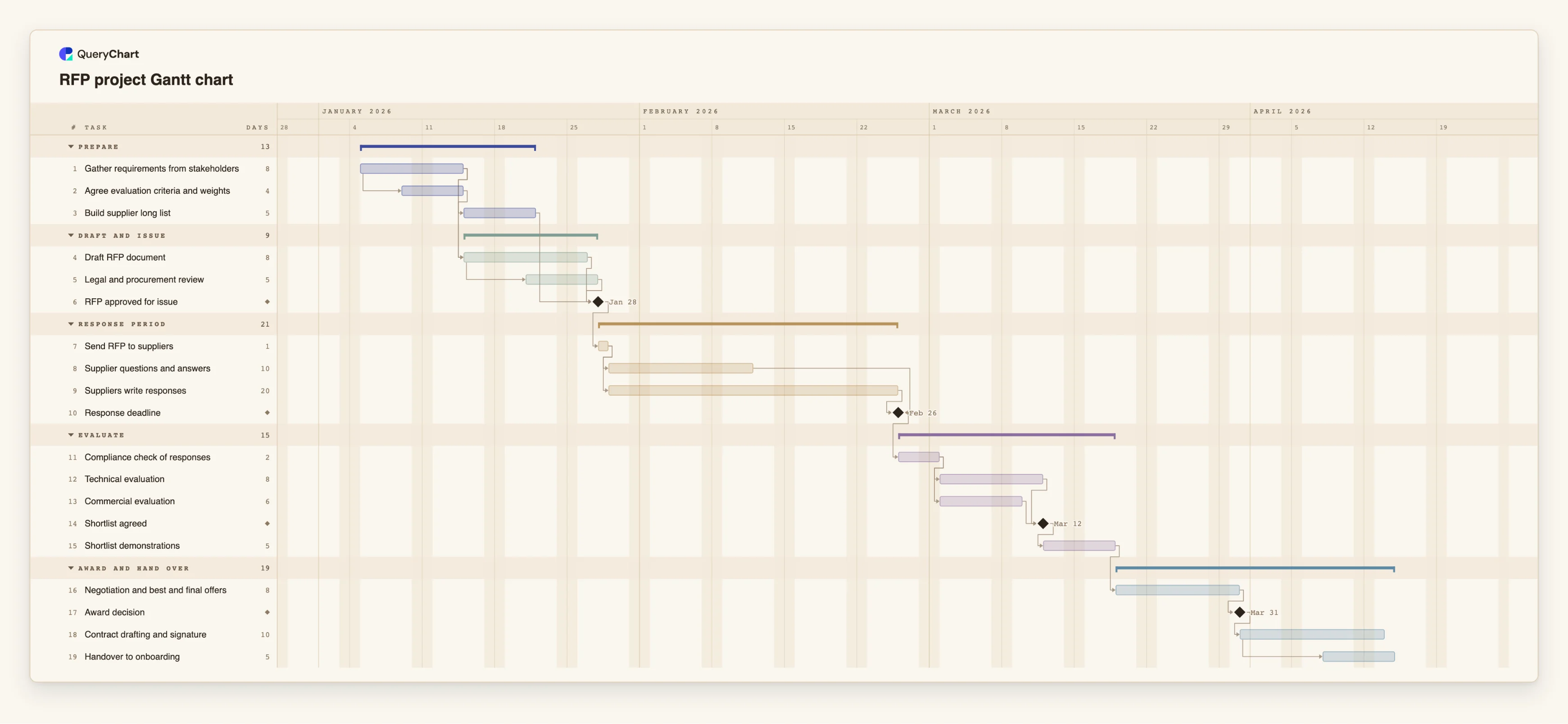
That is why two delays of the same length can have different results. A slip on a task off the longest chain is absorbed until it has used up the room that task had. A slip on the longest chain moves everything after it, day for day. The example below is a supplier selection plan in which both kinds appear, with the numbers to show it.
Fixed dates behave differently. A task with a fixed Start stays where you pinned it. If a predecessor now finishes later than that date allows, the chart does not move the task: it flags a conflict and names the earliest date the dependency permits. Pinning is therefore a way to see a date that cannot be met, not a way to protect it.
QueryChart recalculates dates from what you enter. It does not keep an earlier version of the plan to compare with, track planned against actual dates, or report slippage. To keep the plan as it was before a change, export a PDF first. For a plan that has already slipped badly, /guides/project-recovery-plan-gantt covers rebuilding it.
Which delays move the date in an RFP plan
Nineteen tasks. Durations are illustrative; set your own. Open the spreadsheet panel and change a duration to see the finish date move.
Room in the early work
"Draft RFP document" is 8 working days and "Legal and procurement review" (5) starts 4 days after the draft starts. "RFP approved for issue" waits for both and for "Build supplier long list" (5). Lengthening the draft to 9 days moves nothing; to 10 moves the approval by 1 day. The long list can grow from 5 to 9 days before it matters.
A slip that moves the date, and one that does not
"Suppliers write responses" is 20 days and "Supplier questions and answers" is 10, finish-to-finish with "Response deadline". Growing the questions task to 20 days changes nothing. Growing "Suppliers write responses" to 25 moves the deadline, and everything after it, by 5 days.
Parallel evaluations
"Technical evaluation" (8 days) and "Commercial evaluation" (6) both follow "Compliance check of responses" (2), and "Shortlist agreed" waits for both. If the technical review grows to 10 days, the shortlist moves by 2; the commercial review has 2 days of room before it starts to matter.
What a late start does at the end
"Contract drafting and signature" (10 days) is followed by "Handover to onboarding" (5), which starts 6 days after it starts. With the plan as drawn, the last task finishes 72 working days after the start; a 5-day slip in "Suppliers write responses" makes that 77. Pin the Start of "Send RFP to suppliers" three days late and everything from it to the finish moves by three, while the work before it stays where it is.
How it works
Change the number that changed
If a task now takes longer, edit its Duration. If a task cannot begin until a certain date, give it a fixed Start. Avoid dragging bars to show a delay, because moving a bar fixes its Start and pins it from then on.
Read the new finish date
Compare the finish date with the date you need. If it did not change, the delay was absorbed by the room that task had. If it did, the task is on the longest chain.
Switch on the critical path
Under View, turn on Critical path. The lit chain is what sets the finish date. A delay on it is the one that has to be recovered; a delay off it can often wait.
Check the conflict flags
Open the Conflicts list in the plan panel. A task with a fixed Start earlier than its predecessors allow is flagged with the earliest date they permit. Either move the Start to that date, clear it so the task starts automatically, or shorten what comes before.
Choose how to respond
You can shorten the late task, split it so a second task runs beside it with a start-to-start link, overlap it with its successor using a lag of 0 or a negative lag, or move work off the longest chain. Change one thing and look at the date before changing another.
Keep a copy of the earlier plan
Export a PDF or CSV before you edit, and add a line to the Notes of the task that slipped saying what changed and why. Share the updated chart so owners see the new dates.
Mistakes to avoid
Dragging bars to show the slip
Moving a bar writes a fixed Start for that task. After that it no longer follows its predecessors, so later changes upstream raise conflicts instead of moving it. Edit durations and dependencies; pin only genuinely fixed dates.
Recovering the wrong task
Shortening a task that is not on the longest chain leaves the finish date where it was. Check the critical path before spending effort on a recovery.
Reading progress as schedule
Progress is drawn inside the bar but does not change any date. A task at 10 percent that should be at 50 percent looks as if it is on plan until you change its Duration or its dependencies.
Expecting an automatic record of slippage
QueryChart does not store the original dates or flag a task as late. If you need to show how the plan moved, export a PDF before each change and keep the files.
Open the RFP Gantt chart
Open the RFP plan, lengthen a task and watch which dates move and which stay put.
Related guides
Frequently asked questions
What happens to dependent tasks when a task is delayed?
Tasks that wait for it are recalculated and start later, according to the dependency type and lag. Tasks that do not depend on it stay where they are. A task with a fixed Start does not move; if its predecessor now finishes later than that date, it is flagged as a conflict.
Why did the finish date not move when I extended a task?
The task is not on the longest chain, and it had room. It can grow by that room before the finish moves. In the example, "Supplier questions and answers" can grow from 10 to 20 days with no change.
What does the conflict flag on a fixed start mean?
The task has a Start earlier than a dependency allows. The chart keeps it where you pinned it and names the earliest date that would satisfy the dependency, so you can fix the date or the link.
Does the chart show which tasks are late?
No. It shows the schedule calculated from your inputs and a today line, but it has no planned-versus-actual view. Update durations and progress, and export a PDF to keep earlier versions.
Which guides help with a plan that has already slipped?
Start with /guides/gantt-chart-critical-path to find the chain that matters, then /guides/project-recovery-plan-gantt to rebuild the plan. For approving scope or date changes, see the flowchart at /templates/project-change-request-process.