A simple Gantt chart for small teams: what you need and what to skip
What a small team needs from a Gantt chart, what you can safely skip compared with a full project-management suite, and an honest list of what QueryChart's Gantt chart does not do.
A small team rarely needs a project-management suite. It needs a shared picture of the tasks, their order and the finish date, kept current without a person whose job is to maintain it.
The short version
- You need tasks, lengths, dependencies, owners, progress and a finish date.
- You can skip baselines, cost tracking, resource levelling and multiple calendars.
- Paste a task list from a spreadsheet instead of retyping it.
- Share as a link or export a PDF, PNG, SVG or CSV.
- Not available: cost, effort, overload warnings, baselines, holidays, Microsoft Project files.
A simple Gantt chart is a decision about scope
For a team of three to ten people on a project of a few months, most of what makes a full project-management suite heavy is not used. Nobody levels resources across a hundred projects, tracks budget per task or compares against three baselines. What the team does need is the list of tasks, who has each, what depends on what, and the date it all ends. A simple Gantt chart gives exactly that and no more.
That core is small: a task list, a length in working days for each task, dependencies where order matters, a group for each phase, a name against each task and a progress figure that someone updates once a week. With those, the bars and the finish date follow. QueryChart builds the chart from a table, so a team can type the list, paste it from a spreadsheet, or start from a template and replace the tasks.
Be clear about what you are giving up. QueryChart's Gantt chart does not track cost or effort, does not warn about overloaded people or level the load, does not compare against a baseline, schedules in whole working days on a Monday-to-Friday calendar with no holidays, and does not import Microsoft Project files. If your project needs any of those as a daily tool, a larger suite is the right choice. If it needs them only now and then, a note beside the chart is often enough.
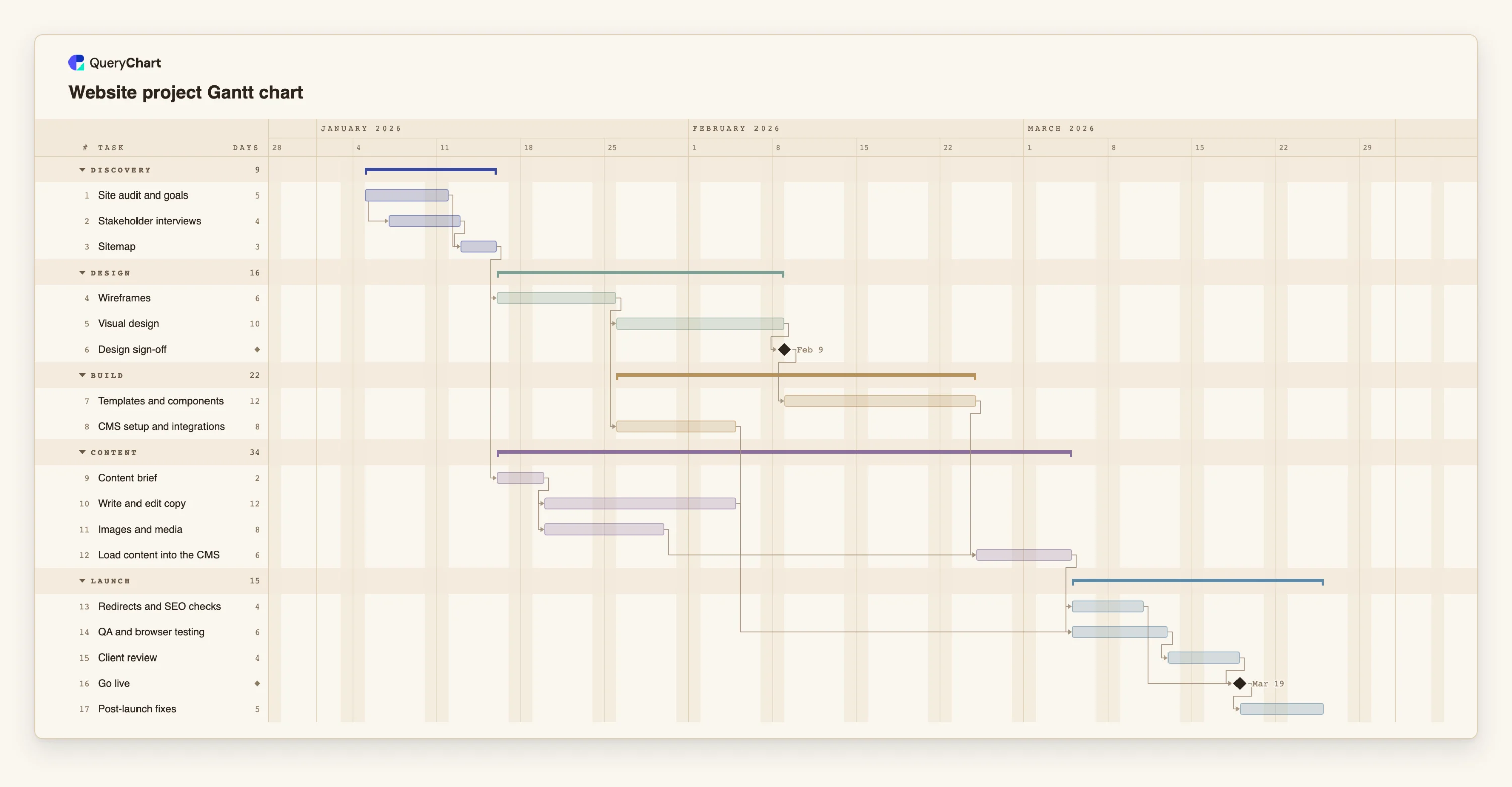
The example is a website project, a typical small-team plan with design, content and build running in parallel before launch. Read it as an upper bound of detail: seventeen tasks.
A website project a small team can run from one page
Seventeen tasks in four stages. Open the spreadsheet panel to see the table behind the bars.
Discovery with two overlapping tasks
"Site audit and goals" takes 5 working days. "Stakeholder interviews" (4 days) starts 2 days after the audit starts, so the two overlap, and "Sitemap" waits for both.
Design to a sign-off
"Wireframes" takes 6 days, "Visual design" 10, and "Design sign-off" is a milestone of length 0. It is the point at which the build of "Templates and components" is released.
Build and content in parallel
"Templates and components" (12 days), "CMS setup and integrations" (8) and the content tasks all run at the same time. "Content brief" is 2 days and releases "Write and edit copy" (12) and "Images and media" (8).
Load, test, review and launch
"Load content into the CMS" waits for the templates, copy and images. "QA and browser testing" and "Redirects and SEO checks" follow it, then "Client review", the "Go live" milestone and "Post-launch fixes" for 5 days.
How it works
Start from the nearest template
Open a Gantt template such as the website project, or start blank. Replace the task names with your own. You can edit it without an account; creating one keeps the chart.
Keep the task list short
Write the tasks that one person can own and finish, at a level you will actually update. For a project of a few months, fifteen to thirty rows are usually enough.
Set lengths and link only what has to be ordered
Give each task a length in working days and list real predecessors in Depends on. Leave tasks that can run at the same time unlinked, so the chart shows the parallel work.
Name who has each task and group the phases
Add People so every task has a name against it, and Group so phases are drawn as bands. A reader can then see both the order and the owner at a glance.
Share it and review weekly
Share the chart as a link so the team and the client see the same version. Once a week, update Progress and adjust lengths. Export a PDF, PNG, SVG or CSV when you need to send it elsewhere.
Mistakes to avoid
Planning in half days
Durations are whole working days, with no hours or half days. Round a half-day task up or fold it into a neighbouring task rather than fighting the unit.
Expecting holidays and absences to be handled
The calendar is Monday to Friday with no holidays, and nothing reschedules around leave. Add a task or a lag for a known absence, or pin the date.
Relying on the chart for workload
People are recorded against tasks, but the chart does not warn when one person has overlapping tasks. In a small team, check that by eye or in the team meeting.
Trying to upload a file
There is no file upload for Gantt charts yet. Copy the rows from your spreadsheet and paste them into the sheet. If the first line names the columns, they are matched by name.
Open the website project
Open the website project as your own chart, replace its tasks with yours and share the link with your team.
Related guides
Frequently asked questions
What do small teams actually need from a Gantt chart?
A list of tasks, a length for each, the dependencies that matter, a name on each task, progress, and a finish date that updates when something changes. Everything else is optional.
What is missing compared with a full project-management suite?
No cost or effort tracking, no overload warnings or resource levelling, no baselines, no holidays or other calendars, no Microsoft Project import or export, and no integrations with other tools.
Can I paste my existing task list?
Yes. Copy rows from Excel, Sheets or a CSV and paste them into the sheet. If the first line names the columns, such as Task, Start, Finish and Depends on, each is matched by name. Dates are read as ISO dates or in your locale's order, so use yyyy-mm-dd to be safe.
Can the whole team edit it?
Share the chart as a link, and comments, approvals and version history work as on any chart. A Gantt chart is shown read-only on a phone, so edit on a larger screen.
When should we move to something bigger?
When you need to level resources, track cost or compare against a baseline every week. Until then a simple chart is faster to keep current. See /guides/gantt-chart-best-practices for habits that keep it reliable.