CSV process map template (order to delivery)
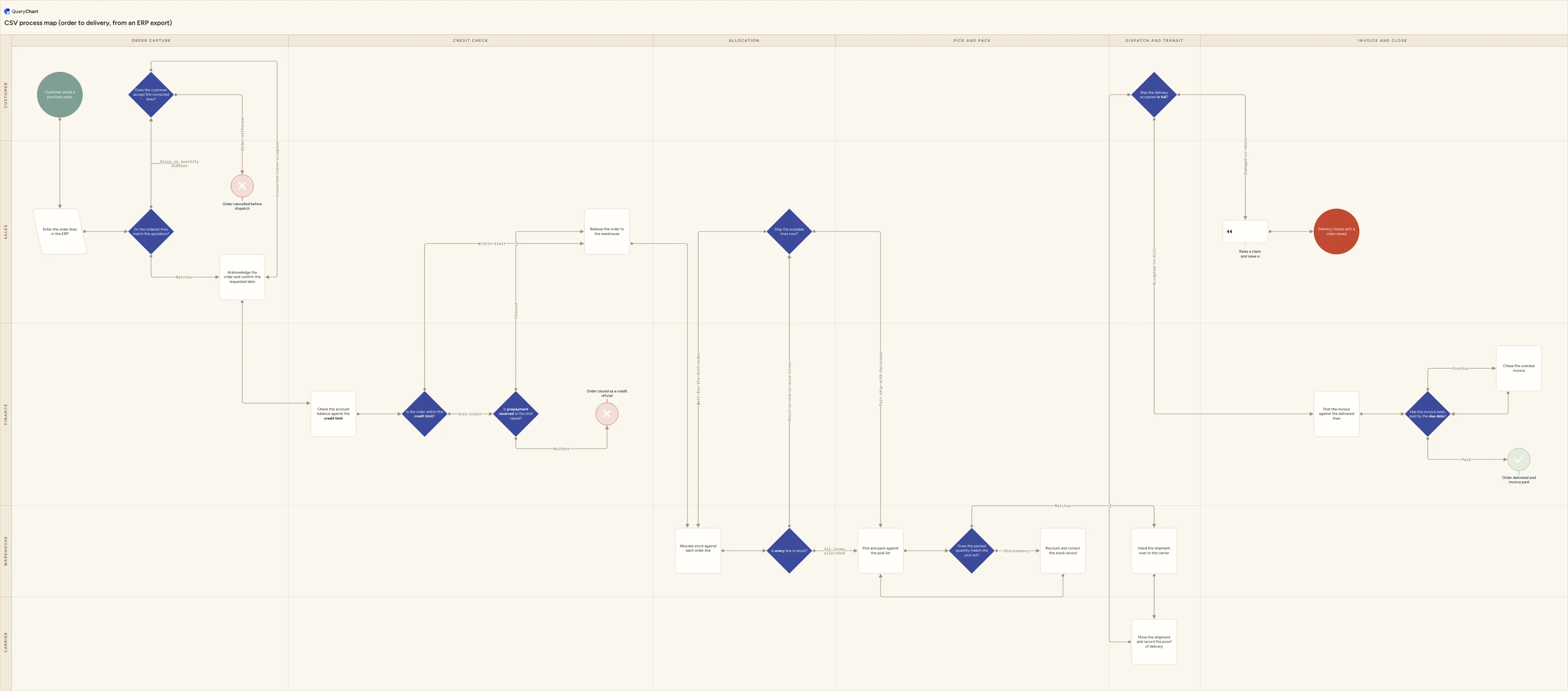
Turn an ERP order export into an end-to-end process map: six stage columns, five lanes, a credit hold, a part-shipment split, a pick discrepancy loop, a delivery claim and an invoice chased until it is paid.
What the CSV process map template (order to delivery) process is
A CSV is what comes out of a system, not what you work in. Export order lines from SAP, NetSuite or Business Central and you get plain text: a header row of column names, then one row per order line, fields separated by a delimiter and wrapped in double quotes wherever a field contains that delimiter itself. There are no formulas, no second sheet, no cell colours and no merged headings, because the format has nowhere to put them. What survives is what the system stores: document numbers, item codes, quantities, dates rendered as text in whatever format the export was configured with, and status codes. What does not survive is everything a person added on top: the colour that meant on hold, the note in the margin, the tab called Process.
That export answers where each line stopped. It does not answer how it got there, and a list of statuses cannot be made to answer it, because a status is a resting place and a process is the set of moves between them. Reading one is also harder than it looks: an export of a thousand order lines is perhaps two hundred orders, several of them appearing twice because a part-shipment raised a backorder under a second document number. Nothing in the file marks the two as the same order except a reference column somebody has to know to look at.
A process map is the answer, and it differs from a flowchart in one respect that matters here: the stage. A flowchart of an order tells you what happens next. A process map puts each step under the stage of the order it belongs to, so you can see that six of the twenty steps sit in one stage and that the order changes hands four times on its way across. In QueryChart's sheet the stage lives in the Horizontal lane column and the role in the Vertical lane column, one row per step, with the Line to column naming the row numbers each step hands off to. The chart below is that map for a physical goods business, drawn from one start to four separate endings, and the rest of this page is about getting your file into a state where it will import.
What this flowchart covers
In this template
- Six stage columns (Order capture, Credit check, Allocation, Pick and pack, Dispatch and transit, Invoice and close) crossed with five lanes: Customer, Sales, Warehouse, Finance and Carrier, so an export's owner and status columns become a position on the page instead of two more codes.
- Order capture as an export actually records it: "Enter the order lines in the ERP" one line at a time, then "Do the ordered lines match the quotation?", whose difference branch runs through "Does the customer accept the corrected lines?" to either the acknowledgement or "Order cancelled before dispatch".
- A credit stage that can stop an order dead. "Is the order within the credit limit?" tests the whole open balance, not this order alone, and the over-limit branch reaches "Is prepayment received or the limit raised?", which either releases the order or ends it at "Order closed as a credit refusal".
- The part-shipment decision that makes the export confusing later: "Is every line in stock?" hands short orders to "Ship the available lines now?", where splitting the order raises a backorder under a second document number and waiting returns to "Allocate stock against each order line".
- A picking loop with a stock correction in it ("Does the packed quantity match the pick list?" sends a discrepancy to "Recount and correct the stock record" and back to "Pick and pack against the pick list") followed by the two-lane handover through "Hand the shipment over to the carrier".
- Delivery and cash as part of the same map: "Was the delivery accepted in full?" in the Customer lane, a damaged or short delivery ending at "Delivery closed with a claim raised", and "Has the invoice been paid by the due date?" looping through "Chase the overdue invoice" until it reaches "Order delivered and invoice paid".
When to use this template
- You have an order export open, no diagram anywhere, and somebody has asked what the order-to-delivery process is rather than what the numbers were.
- Orders are late and each department can account for its own stage, so the argument is about the handoffs between them and nobody has drawn one.
- A part-shipped order shows up twice in every export under two document numbers, and no chart says when a split is allowed or who authorises it.
- Finance and the warehouse disagree about when an order is invoiceable, because the process has never stated whether the delivered or the ordered quantity is billed.
- You are configuring or replacing an ERP and need the current process on one page before anyone maps it onto the new system's document flow.
The CSV that produces this diagram
One row per step. The numbers in Line to are row numbers — that is what draws the connectors, and it is the column most files are missing.
| # | Shape | Box text | Line to | Line text | Horizontal lane | Vertical lane |
|---|---|---|---|---|---|---|
| 1 | Start | Customer sends a purchase order | 2 | Order capture | Customer | |
| 2 | Manual input | Enter the order lines in the ERP | 3 | Order capture | Sales | |
| 3 | Decision | Do the ordered lines match the quotation? | 6, 4 | Matches, Price or quantity differs | Order capture | Sales |
| 4 | Decision | Does the customer accept the corrected lines? | 6, 5 | Corrected lines accepted, Order withdrawn | Order capture | Customer |
| 5 | Reject | Order cancelled before dispatch | Order capture | Sales | ||
| 6 | Process | Acknowledge the order and confirm the requested date | 7 | Order capture | Sales | |
| 7 | Process | Check the account balance against the credit limit | 8 | Credit check | Finance | |
| 8 | Decision | Is the order within the credit limit? | 11, 9 | Within limit, Over limit | Credit check | Finance |
| 9 | Decision | Is prepayment received or the limit raised? | 11, 10 | Cleared, Neither | Credit check | Finance |
| 10 | Reject | Order closed as a credit refusal | Credit check | Finance | ||
| 11 | Process | Release the order to the warehouse | 12 | Credit check | Sales | |
| 12 | Process | Allocate stock against each order line | 13 | Allocation | Warehouse | |
| 13 | Decision | Is every line in stock? | 15, 14 | All lines allocated, Short on one or more lines | Allocation | Warehouse |
| 14 | Decision | Ship the available lines now? | 15, 12 | Part-ship with backorder, Wait for the full order | Allocation | Sales |
| 15 | Process | Pick and pack against the pick list | 16 | Pick and pack | Warehouse | |
| 16 | Decision | Does the packed quantity match the pick list? | 18, 17 | Matches, Discrepancy | Pick and pack | Warehouse |
| 17 | Process | Recount and correct the stock record | 15 | Pick and pack | Warehouse | |
| 18 | Process | Hand the shipment over to the carrier | 19 | Dispatch and transit | Warehouse | |
| 19 | Process | Move the shipment and record the proof of delivery | 20 | Dispatch and transit | Carrier | |
| 20 | Decision | Was the delivery accepted in full? | 23, 21 | Accepted in full, Damaged or short | Dispatch and transit | Customer |
| 21 | Compensation | Raise a claim and issue a credit note | 22 | Invoice and close | Sales | |
| 22 | End | Delivery closed with a claim raised | Invoice and close | Sales | ||
| 23 | Process | Post the invoice against the delivered lines | 24 | Invoice and close | Finance | |
| 24 | Decision | Has the invoice been paid by the due date? | 26, 25 | Paid, Overdue | Invoice and close | Finance |
| 25 | Process | Chase the overdue invoice | 24 | Invoice and close | Finance | |
| 26 | Success | Order delivered and invoice paid | Invoice and close | Finance |
#,Shape,Box text,Line to,Line text,Horizontal lane,Vertical lane
1,Start,Customer sends a purchase order,2,,Order capture,Customer
2,Manual input,Enter the order lines in the ERP,3,,Order capture,Sales
3,Decision,Do the ordered lines match the quotation?,"6, 4","Matches, Price or quantity differs",Order capture,Sales
4,Decision,Does the customer accept the corrected lines?,"6, 5","Corrected lines accepted, Order withdrawn",Order capture,Customer
5,Reject,Order cancelled before dispatch,,,Order capture,Sales
6,Process,Acknowledge the order and confirm the requested date,7,,Order capture,Sales
7,Process,Check the account balance against the credit limit,8,,Credit check,Finance
8,Decision,Is the order within the credit limit?,"11, 9","Within limit, Over limit",Credit check,Finance
9,Decision,Is prepayment received or the limit raised?,"11, 10","Cleared, Neither",Credit check,Finance
10,Reject,Order closed as a credit refusal,,,Credit check,Finance
11,Process,Release the order to the warehouse,12,,Credit check,Sales
12,Process,Allocate stock against each order line,13,,Allocation,Warehouse
13,Decision,Is every line in stock?,"15, 14","All lines allocated, Short on one or more lines",Allocation,Warehouse
14,Decision,Ship the available lines now?,"15, 12","Part-ship with backorder, Wait for the full order",Allocation,Sales
15,Process,Pick and pack against the pick list,16,,Pick and pack,Warehouse
16,Decision,Does the packed quantity match the pick list?,"18, 17","Matches, Discrepancy",Pick and pack,Warehouse
17,Process,Recount and correct the stock record,15,,Pick and pack,Warehouse
18,Process,Hand the shipment over to the carrier,19,,Dispatch and transit,Warehouse
19,Process,Move the shipment and record the proof of delivery,20,,Dispatch and transit,Carrier
20,Decision,Was the delivery accepted in full?,"23, 21","Accepted in full, Damaged or short",Dispatch and transit,Customer
21,Compensation,Raise a claim and issue a credit note,22,,Invoice and close,Sales
22,End,Delivery closed with a claim raised,,,Invoice and close,Sales
23,Process,Post the invoice against the delivered lines,24,,Invoice and close,Finance
24,Decision,Has the invoice been paid by the due date?,"26, 25","Paid, Overdue",Invoice and close,Finance
25,Process,Chase the overdue invoice,24,,Invoice and close,Finance
26,Success,Order delivered and invoice paid,,,Invoice and close,Finance
How it works
Open the file in a text editor before you open any editor
A CSV is text, so look at it as text first. Check three things on the first two lines: the delimiter, which is a semicolon rather than a comma in most European locales because the list separator follows the regional setting; whether the header row is genuinely the first line, since many exports prepend a report title and the filter criteria; and whether stray characters sit in front of the first column name, which is what a byte order mark looks like once something has failed to strip it. Delete any preamble and any totals row at the bottom, and save as plain UTF-8.
Collapse the order lines into process steps
The export has one row per order line. The map needs one row per step, and the two are unrelated: fifty rows of item codes describe one order passing through one stage. Work out your steps from the document numbers instead — order, credit hold, delivery note, invoice, credit note — because each of those is a moment the order changed hands. Keep the line-level detail as a count in the Notes column if you want it on the chart.
Renumber the Line to column, because your keys are not row numbers
Line to takes the row NUMBER a step connects to, comma-separated, and Line text takes the connector labels in matching order. Your export's keys are document numbers, and pasting those in produces a chart with no arrows at all — a target naming no row is dropped silently. Number your steps 1 to n in the order they appear, then write the targets against those numbers. Inserting a step later shifts every number below it, so import first and add steps in the editor.
Put the stage in Horizontal lane and the role in Vertical lane
This is the column that makes it a process map rather than a flowchart. Horizontal lane holds Order capture, Credit check, Allocation, Pick and pack, Dispatch and transit and Invoice and close, or whatever your six stages are; Vertical lane holds Customer, Sales, Warehouse, Finance and Carrier. Import matches header names, not column positions, so those two headers can sit anywhere in the file and any columns you do not recognise are carried along and ignored.
Write your two thresholds into the decisions
"Is the order within the credit limit?" and "Ship the available lines now?" are the two places this process bends, and both are currently judgement calls. Say what the credit test measures — total exposure including open invoices, or this order alone — and say who may authorise a part-shipment and above or below what value. A decision without a stated threshold gets answered differently by each person who reaches it.
Rename the Carrier lane to the party you actually use
The Carrier lane exists so that the one step nobody in your building performs is visible. Rename it to the carrier or third-party warehouse you use, and if you deliver on your own vehicles, merge it into Warehouse rather than leaving a lane that implies an external handoff you do not make. The same applies to the Customer lane: keep it, because the two customer decisions are where most delay in this process actually sits.
Frequently asked questions
What is the difference between a process map and a flowchart?
Stages, and what they let you see. A flowchart shows the sequence of steps and the decisions between them, and it is complete when every path ends somewhere. A process map keeps all of that and adds a second axis: each step also belongs to a stage of the work, so the diagram shows where the effort is concentrated and where the work changes hands. For order to delivery that matters, because the delay is almost never inside a stage. It is between them — an order sitting released but unallocated, or packed but not collected. Draw one order as a flowchart and you see the steps. Draw the process as a map and you see that it crosses four teams and that two of those crossings have no defined trigger at all.
What is actually in an ERP order export?
One row per order line, and a set of columns describing that line rather than the process. Typically: the order number, the line number, the customer, an item code and description, ordered and shipped quantities, a price, a requested and a confirmed date, a status code and often a delivery or invoice document number once those exist. Dates arrive as text in whatever format the export profile specified, which is why the same file read in two countries produces two different sets of dates. Long numeric references are worth watching: open a CSV in a spreadsheet and re-save it and leading zeros disappear, while a sufficiently long order number can come back in scientific notation. None of that is the export's fault, but all of it is in the file by the time it reaches you.
Why does my CSV import into the wrong columns?
Usually the delimiter or the header row. Import matches header names, so the file has to have a real header row as its first line, and an export that begins with a report title, a run date and the filter criteria has its header on line four. The other common cause is a semicolon-delimited file being read as comma-delimited, or the reverse, which lands every row in a single column. After that, look at quoting: a field containing the delimiter has to be wrapped in double quotes, and a double quote inside a quoted field is written twice. An address column with a comma in it, exported without quotes, shifts every column to its right by one for that row only.
Can I import the export straight in without editing it?
Not usefully, and not because of the importer. The columns QueryChart reads are Shape, Box text, Line to, Line text, Line style, Horizontal lane, Vertical lane, Notes and Link, and no ERP exports those. Extra columns are carried and ignored, so you can leave the item codes and prices in the file, but the two columns that make a chart — Box text and Line to — have to be written by you. There is no connector and no import wizard: you drop the .csv onto the spreadsheet area or paste the CSV text into it, and what you get is whatever the header names matched. The export is the source of the facts, not the source of the diagram.
Should the map show one order or the whole process?
The process. One order is a case, and a case only ever takes one route, so a diagram of it shows the branches that particular order happened to take and none of the ones it avoided. That is why the chart above has nine decisions and four endings: an order can be cancelled at capture, refused on credit, closed with a claim, or delivered and paid, and a real process has to admit all four. Use your export to work out which branches carry real volume — how many orders were credit-held, how many were part-shipped, how many produced a credit note — and put those counts in the Notes column against the decision they belong to. That is the honest use of the data: the file tells you how often each route is taken, and the map tells you what the routes are.