How to convert CSV to a process map
How to convert a CSV export into a process map: find the stage column and the owner column your system already exports, copy them into Horizontal lane and Vertical lane, and let every step land where it belongs.
A process map is a flowchart with a second axis: every step also sits under the stage of the work it belongs to, and in a CSV that axis is one more column, usually one the export already contains under another name.
The short version
- Horizontal lane holds the stage, Vertical lane holds the owner: two more columns in the same CSV.
- Your export already has both, under names like Status, Milestone, Department or Assigned to.
- The distinct values of the stage column become the lane labels, in the order the rows appear.
- Lane labels match as exact text, so a trailing space or a different case quietly makes a second lane.
- Quote any lane label containing the delimiter, or "Finance, AP" arrives as two columns.
What a process map adds to a flowchart
A flowchart answers one question: what happens next. A process map answers that and one more: where in the work this step sits. That second answer is the stage, and it is what lets you look at a diagram and say that six of the twenty-six steps happen before the order is even confirmed, or that the order changes hands four times between capture and cash. In QueryChart both answers are columns in the same sheet. Horizontal lane holds the stage, Vertical lane holds the owner, and a flowchart is simply a process map with those two cells left empty.
For a CSV that is a smaller job than it sounds, because the export almost certainly carries both columns already. Whatever produced the file (an ERP, a ticketing system, a case management tool) needed to filter and report on its records, so it stores a coarse position in the work and a party responsible for it. The position is called Status, Order status, Document type, Milestone, Phase or Stage. The party is called Responsible, Assigned to, Owner, Department, Cost centre, Work centre, Team or Queue. Nobody added those columns to draw a diagram. They are the two axes of a process map regardless.
The one thing the export will not give you is the rows. A CSV out of a system is one row per record (one order line, one ticket, one status change), and a process map is one row per move. A thousand order lines are two hundred orders passing through about twenty steps, and no amount of grouping turns the first list into the second. So the conversion is two passes: take the distinct values of the stage column as your lane labels, then write the steps yourself and tag each one with a stage and an owner. Getting the file into a shape that will import cleanly first is worth the ten minutes; /guides/how-to-structure-csv-for-flowcharts covers that part.
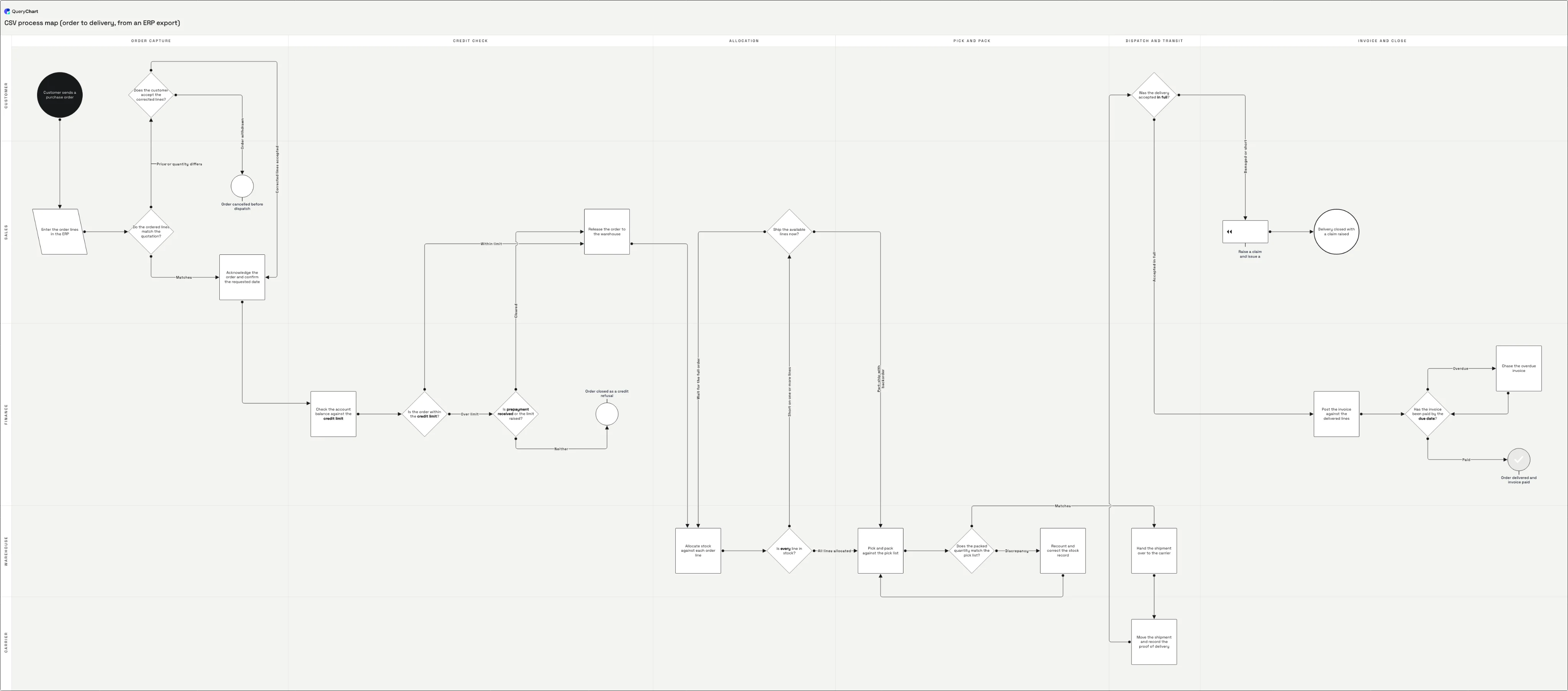
The example below is an order-to-delivery map built from an ERP export: six stages across the top, five lanes down the side, twenty-six steps and four different endings. It fills in one group of columns at a time, and the lane columns come last on purpose, so you can see exactly what they add. The finished chart is at /templates/csv-process-map if you want to open it and paste your own rows over it.
An export's own columns as the two lane axes
Order to delivery in four passes. Open the spreadsheet panel to see which columns are filled in at each one: the two lane columns come last.
Steps and shapes only
Rows 1 to 6 all belong to a single stage. "Customer sends a purchase order", "Enter the order lines in the ERP", the check "Do the ordered lines match the quotation?", and the two ways that check can end: an acknowledgement, or "Order cancelled before dispatch". Six steps under one value of the export's status column, which is the reason a list of statuses can never be a map.
Connections as row numbers
Line to fills in and the credit stage attaches to the front half. "Is the order within the credit limit?" sends the within-limit case to row 11 and the over-limit case to row 9, which either reaches "Release the order to the warehouse" or stops at "Order closed as a credit refusal". Those numbers are row positions, not the document numbers your export uses as keys.
Branch labels and the loops
Line text names each exit and two loops become visible. "Ship the available lines now?" carries 15,12 in Line to and "Part-ship with backorder,Wait for the full order" in Line text, so the second exit runs backwards to row 12, "Allocate stock against each order line". A Discrepancy on the packing check returns to picking the same way. Both loops are why one order can appear twice in the same export under two document numbers.
The two lane columns
The last two columns go in and the flowchart becomes a map. Horizontal lane holds Order capture, Credit check, Allocation, Pick and pack, Dispatch and transit and Invoice and close; Vertical lane holds Customer, Sales, Warehouse, Finance and Carrier. Read the finished chart across and the order changes hands four times, twice at a stage boundary with no defined trigger, which no column of status codes could ever have shown you.
How it works
Open the file as text and read the header row
Before anything else, look at the first two lines in a text editor. You need the delimiter, which is a semicolon rather than a comma in most European exports because the list separator follows the regional setting, and you need the actual column names. Write the header row out on paper; you are about to pick two of those columns and everything else follows from that choice.
Pick the stage column
The stage column is the one whose distinct values are few and ordered: Status, Order status, Document type, Milestone, Phase, Process step. Count them: sort the column and take the unique values. Five or six is a set of stages. Thirty is a status code list, and you will have to group it before it becomes an axis, because thirty lanes is not a diagram anyone can read.
Pick the owner column, and prefer roles to people
Responsible, Assigned to, Owner, Department, Cost centre, Work centre, Team, Queue, Sales rep, Buyer. Any of these can be the Vertical lane. If the column holds people rather than roles, map the names to roles first: a lane per employee is unreadable at twenty people and wrong the first time somebody changes job, whereas Warehouse and Finance stay true for years.
Write one row per step, not one row per record
This is the pass no tool can do for you. Your export has one row per order line or per ticket; the map needs one row per move: the moments the work changed hands or a decision was taken. Work them out from the document types and the status transitions, then put the step in Box text and the stage and owner you already chose beside it. Twenty to thirty steps is a whole process; more than that and you are describing two.
Name the two columns exactly Horizontal lane and Vertical lane
Import matches header names, not column positions, and columns it does not recognise are carried along and ignored. So you do not have to delete or reorder anything: leave Status and Assigned to where they are, add two more columns headed Horizontal lane and Vertical lane, and copy the grouped values across. The original columns ride along untouched and you keep a record of where each lane came from.
Drop the file on the spreadsheet area and read what the lanes expose
Drag the .csv onto the editor's spreadsheet area, or paste the text straight into it, and the map draws itself: there is no wizard and no column mapper to work through. Then read across the stages. A stage holding one step is not a stage; a stage nobody owns is a queue; and a handoff between two lanes with no decision in front of it is where the delay in your process actually lives.
Mistakes to avoid
A cell containing the delimiter, unquoted
"Finance, AP" as a lane label, "4,5" in Line to and "Yes,No" in Line text are each one field that happens to contain a comma, so each has to be wrapped in double quotes. Unquoted, they split into two fields and shift every column after them along by one, which is why the symptom is never the cell you broke, it is the lane column arriving full of connector labels.
Sorting the file after you have numbered it
Line to holds row positions, so sorting the CSV by status or date once the targets are written renumbers every row and silently rewires the chart. Decide the row order first, number second, and do any further reordering in the editor, where the connections move with the rows.
Stages that are really statuses
Open, In progress, On hold and Closed are states a record rests in, not sections of the work. A stage is a span with steps inside it: Order capture, Credit check, Allocation. If your stage column reads like a state machine, group its values into four to six spans before they become lane labels.
Trusting the export to contain the exceptions
An export records what happened to the records in it, so a branch nobody took last quarter is simply absent from the file. The credit refusal and the delivery claim on /csv-to-process-map are exactly the paths a data-driven map leaves out, and they are the ones worth drawing, because they are where the process actually breaks.
Build a process map from your export
Open the order-to-delivery example to see both lane columns filled in, then replace the rows with your own steps.
Related guides
Frequently asked questions
Do I need a process map, or is a flowchart enough?
If the argument is about what happens next, a flowchart is enough, and /guides/how-to-create-a-flowchart-from-csv is the shorter job. Add the stage axis when the argument is about where time goes or who is accountable, because those questions are answered by position rather than sequence. The test is whether anyone can say which stage the work is in right now. If two people give different answers, the stage column is doing real work and the map is worth building; if the process is ten linear steps in one team, the stage row across the top is decoration.
Which export column should become the Horizontal lane?
The one whose distinct values are few, ordered and describe where in the work a record has got to, not what kind of record it is and not who touched it. Document type is often the best candidate in an ERP export because each document is created at a specific point in the chain: order, delivery note, invoice, credit note. Status is the next best, once you have grouped its codes. Watch out for columns that look ordered but are not, like priority or customer segment; putting one of those across the top produces a chart that reads like a process map and answers no question at all.
My export has no stage column. Can I still build a map?
Yes, and it is common: plenty of exports carry dates and amounts and nothing describing position. Two routes work. Derive the stages from the date columns, since an export with an order date, a confirmed date, a picked date and an invoice date is describing four stages in the column headers rather than in the values. Or name the stages yourself from how the work is actually run and tag each step by hand; the map does not have to be derived from the file, and four to six honest stage names beat a column of codes nobody agrees on.
Why did my lane names come out as Procédure or Køb?
The file is not UTF-8 and is being read as if it were. Most legacy exports are Windows-1252 or Latin-1, which agrees with UTF-8 for plain English and diverges the moment an accent, an umlaut or a Danish letter appears in a department name. Re-export as UTF-8 if the system offers the choice, or open the file in a text editor and save it as UTF-8. The related symptom is a byte order mark in front of the first header: the column then reads as something other than the name you typed, so that first column matches nothing and is carried in as an unrecognised extra.
Can I keep the other columns from the export?
Yes. Import matches header names, so any column it does not recognise is carried and ignored: you can leave document numbers, quantities and dates in the file without breaking anything. If you want some of that detail visible on the chart rather than just present in it, move it into the Notes column, which holds free text against a step, or the Link column, which points a step at the record it came from. Everything else stays as provenance, which is useful the next time somebody asks where a stage name came from.