How to create a process map in Microsoft Visio
Which Visio template a process map actually needs, which of them your licence can open, and how Check Diagram and subprocesses hold a large map together, with a live worked example alongside.
A process map is made in Visio by opening one of the flowchart templates and then adding the two things a flowchart leaves out (who owns each step and what record it leaves), but which template you may open is decided by your licence before you draw anything.
The short version
- Three process templates are general-purpose: Basic flowchart, Cross-functional flowchart and Work-flow diagram, in Standard, Professional and the subscriptions.
- Audit diagram, BPMN, Event-driven Process, Fault Tree Analysis, IDEF0, ITIL, SharePoint Workflow, SDL, Six Sigma, TQM and Value Stream Map are Professional or Plan 2 only.
- Visio in Microsoft 365 covers four diagram types; cross-functional flowcharts on the web need Plan 1 or Plan 2.
- Check Diagram (Process tab, Diagram Validation group) runs the Flowchart Rule Set and reports in the Issues window: Microsoft lists it for Professional and Plan 2, not Standard.
- Subprocess (Create New, Create from Selection, Link to Existing) is implemented as a hyperlink you follow with Ctrl+click, and is Professional only.
A map answers who owns this and what it leaves behind
A flowchart shows sequence and logic: this happens, then that, and here the path splits. A process map keeps all of that and adds ownership and evidence: the lane the step sits in tells you whose work it is, and the shape tells you what record comes out of it. That extra layer is why maps get built for audits, handovers and process improvement while flowcharts get built to explain something once. In Visio the distinction is partly a drawing decision and mostly a licensing one, because the templates that carry the mapping notations are not all in the edition most people have.
Only three of Visio's process templates are general-purpose. Microsoft's own list is Basic flowchart, Cross-functional flowchart and Work-flow diagram, each documented as supported in Visio Standard, Visio Professional and the subscription versions. Everything more specialised is Professional or Visio Plan 2 only: Audit diagram, BPMN diagram, Event-driven Process diagram, Fault Tree Analysis, IDEF0, ITIL, Microsoft SharePoint Workflow, SDL, Six Sigma, TQM, and Value Stream Map, the one that catches most process-improvement readers. At the time of writing the list prices are US$5.00 for Plan 1 and US$15.00 for Plan 2, per user per month paid yearly, and Plan 2 is the only subscription that includes the Windows desktop app.
Below that sits the tier a great many readers are on without knowing it: Visio in Microsoft 365, the lightweight web app bundled with Microsoft 365 commercial plans. It is capped to flow charts, block diagrams, Venn diagrams and pyramid diagrams (four types) and Microsoft says plainly that it is not a replacement for Plan 1 or Plan 2. Cross-functional flowcharts in the browser require Plan 1 or Plan 2 and are not available in Visio in Microsoft 365, as /guides/how-to-create-cross-functional-flowchart-in-visio sets out. So the swimlanes that turn a flowchart into a map are, on the web, behind the cheapest paid tier, and Microsoft 365 Personal and Family include no Visio at all.
Two features do the heavy lifting once a map gets big, and both are Professional or Plan 2. Check Diagram, on the Process tab in the Diagram Validation group, runs the Flowchart Rule Set and lists what it finds in the Issues window. The Subprocess group on the same tab moves a block of detail onto its own page, and Microsoft documents it as Professional-only. Standard appears in neither feature's Applies-To list, so plan on a Standard map being able to look finished while nothing has checked it. The worked example below is a budget request mapped as five phases across four owners; the drawing mechanics are covered in full at /guides/how-to-create-a-flowchart-in-visio. Visio files stored in OneDrive or SharePoint use file version history; retention depends on the account and library settings. Check those settings and any separate approval workflow before relying on them for controlled documents.
A budget request mapped in four stages
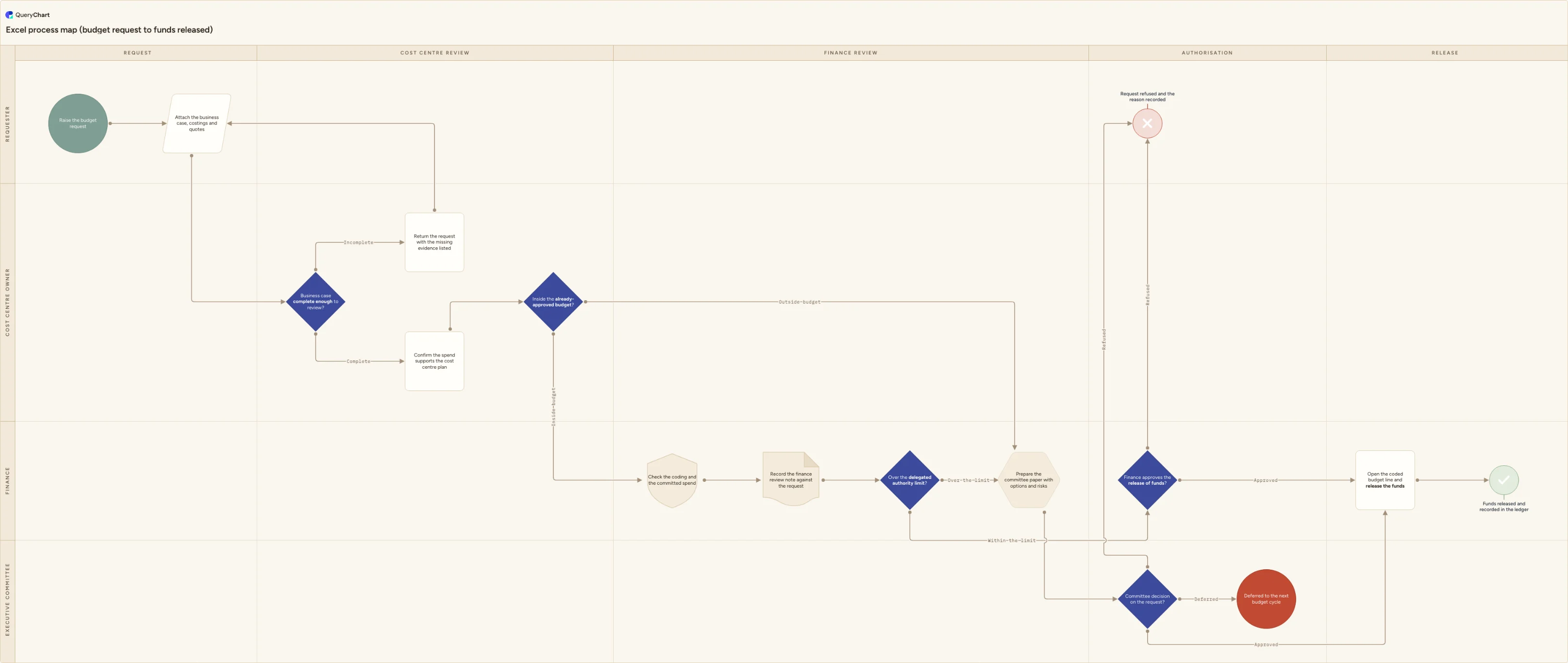
The same sixteen-row approval built up as a map: sequence first, then the branches, then the owners and phases that make it a map rather than a flowchart.
The steps and the record they produce
"Raise the budget request" starts it and "Attach the business case, costings and quotes" is the step that produces the request pack: amount, cost centre, coding, a quote, a named accountable person. A map names the record, not just the action.
The first gate, and the loop back
"Business case complete enough to review?" is the first decision, and its Incomplete branch goes to "Return the request with the missing evidence listed", which points back at row 2. Rework loops are where the real cost of a process sits, and they are the first thing a map should make visible.
Two thresholds, labelled
"Inside the already-approved budget?" and "Over the delegated authority limit?" both route on a number, so every exit carries its own label. Between them sits "Record the finance review note against the request": a file shape, because the review only counts if it left something behind.
Owners and phases turn it into a map
The lane columns place each step against Requester, Cost centre owner, Finance or Executive committee, and against the phases Request, Cost centre review, Finance review, Authorisation and Release. Now the committee route, the deferral and the refusal are visibly somebody's work rather than floating logic.
How it works
Decide what the map must show, then check it against your licence
Write down whether you need lanes, phases, a formal notation or a value stream before you open anything. Basic flowchart, Cross-functional flowchart and Work-flow diagram are supported in Visio Standard, Visio Professional and the subscription versions. Audit diagram, BPMN, Event-driven Process, Fault Tree Analysis, IDEF0, ITIL, SharePoint Workflow, SDL, Six Sigma, TQM and Value Stream Map are Professional or Visio Plan 2. Checking first costs a minute; discovering it after the workshop costs the workshop.
Open the template
For a plain map, Microsoft's steps are: start Visio, select the Flowchart category, then double-click Basic Flowchart. For a map with lanes, start Visio, click Flowchart under Categories, click the Cross Functional Flowchart template and select Create; if prompted, choose Horizontal or Vertical for the swimlane orientation and click OK. Both templates use the same stencil: the cross-functional one simply arrives with swimlanes already on the page.
Place the steps and connect them
Type directly into a selected shape for its label, then press Esc. To connect, hold the pointer over the first shape and select the small arrow that points towards the shape you want to reach; to wire shapes that already exist, use the Connector tool on the Home tab in the Tools group, or Ctrl+3, and return to the Pointer Tool with Ctrl+1. Double-click a connector to label a branch. Only one text box per connector, and it cannot be filled, resized or formatted.
Add lanes for owners and separators for phases
Right-click a lane header and choose Insert 'Swimlane' Before or Insert 'Swimlane' After, or use the Insert group on the Cross-functional Flowchart ribbon tab. The label bar reads Function by default; double-click it to rename. Phases are not lanes: they are Separator shapes dropped onto the swimlanes to mark a phase change. Moving a lane moves its contents, and deleting one deletes them; the detail is at /guides/how-to-create-a-swimlane-diagram-in-visio.
Push detail down into subprocesses
A map that needs scrolling has stopped being a map. On the Process tab, the Subprocess group offers Create New, Create from Selection and Link to Existing: Create New adds a page for the subprocess and hyperlinks the selected shape to it, and Create from Selection moves shapes you have already drawn onto that page. Follow the link with Ctrl+click. This group is Visio Professional only, so on Standard or the web the equivalent is a separate page and your own cross-reference.
Validate it, then publish it read-only
On the Process tab, in the Diagram Validation group, select Check Diagram. Both flowchart templates default to the Flowchart Rule Set, and findings appear in the Issues window; suppress a false positive with Ignore This Issue or Ignore Rule, which leaves it listed as a shaded row with Yes in the Ignored column. Validation is Professional and Plan 2; on Standard, walk every branch yourself. Then share the file rather than a picture: viewing and commenting in Visio for the web need no licence.
Mistakes to avoid
Choosing a template your licence cannot open
Value stream maps, BPMN models, audit diagrams and the rest of the specialised set are Visio Professional or Visio Plan 2. On the bundled Visio in Microsoft 365 the ceiling is lower still: flow charts, block diagrams, Venn and pyramid diagrams, with no cross-functional flowchart. Decide the notation, then buy the tier, in that order.
Assuming a finished-looking map has been checked
Check Diagram's Applies-To list names Visio Professional and Visio Plan 2 and does not name Standard, so do not assume the map you inherited was validated by the person who drew it. A map with an unlabelled decision branch or a step that leads nowhere renders exactly as neatly as a correct one. Where validation is not available to you, walk each route out loud before the map is signed off.
Treating subprocess pages as structure
All three Subprocess commands are implemented as hyperlinks from a shape to a page, not as a parent-child relationship Visio maintains for you. Restructure the file and Ctrl+click can land nowhere useful. Re-point it with Link to Existing, and keep subprocess pages in the same document rather than in a second file somebody will move.
Following Microsoft's SharePoint viewing article
The support article on viewing Visio diagrams in a SharePoint library is years stale: it describes SharePoint Server 2010, .vdw web drawings and installing Silverlight. Following it wastes an afternoon. Current free viewing is Visio for the web, which needs no licence to view or comment on a diagram.
Map the budget request as a live chart
Open the budget request map as your own chart, then rewrite the rows, the owners and the phases into your own process.
Related guides
Frequently asked questions
What is the difference between a process map and a flowchart in Visio?
The difference is what the diagram claims. A flowchart states sequence and logic: the order of steps and where the path splits. A process map keeps that and adds ownership and evidence: which role or team performs each step, and what record the step produces. In Visio there is no separate "process map" template. You get the map by opening the Cross Functional Flowchart template, whose swimlanes carry the ownership, and by choosing shapes that say what a step leaves behind. Phases across the top come from Separator shapes rather than from more lanes.
Which Visio plan do I need to make a process map?
For a basic or cross-functional map, any of Visio Standard, Visio Professional or a subscription will do: those two templates plus the Work-flow diagram are documented as supported everywhere. For a value stream map, a BPMN model, an audit diagram, IDEF0, ITIL, SDL, Six Sigma, TQM, EPC or fault tree analysis you need Visio Professional or Visio Plan 2, whose list price at the time of writing is US$15.00 per user per month paid yearly. Plan 1, at a US$5.00 list price read on the same date, is web and Teams only and does not include the desktop app.
Can I make a value stream map in Visio?
Yes, but not on every licence. Microsoft lists Value Stream Map among the templates supported only in Visio Professional and Visio Plan 2, alongside Six Sigma, TQM, IDEF0 and BPMN. On Visio Standard or the bundled Visio in Microsoft 365 the template is not available, and drawing a value stream by hand out of basic flowchart shapes loses the notation that makes it worth drawing: the data boxes, the inventory triangles and the timeline. If value stream mapping is the point of the exercise, Plan 2 or Professional is the entry price.
Does Visio check a process map for mistakes?
It does, on Professional and Plan 2. Check Diagram lives on the Process tab in the Diagram Validation group, and both flowchart templates use the Flowchart Rule Set by default; results open in the Issues window. Other rule sets cover BPMN, cross-functional flowcharts and SharePoint workflows. A finding you disagree with can be suppressed with Ignore This Issue or Ignore Rule, and it stays visible as a shaded row marked Yes in the Ignored column, so suppression is on the record. Visio Standard is absent from the feature's Applies-To list, and Microsoft documents no Standard equivalent.