Gantt chart vs project plan: the schedule is one part of the plan
A project plan is the whole document: scope, risks, budget, people and schedule. A Gantt chart is the schedule view of it. See what each contains and how to build the schedule part in QueryChart.
People often use the two terms for the same thing, but they are not. The project plan is the document that says what you will do and how. The Gantt chart is one picture inside it: when the work happens.
The short version
- The project plan is the document; the Gantt is its schedule view.
- A plan covers scope, deliverables, risks, budget, people and reporting as well as dates.
- A Gantt shows tasks, lengths, dependencies and the finish date, not why the project exists.
- QueryChart's Gantt does the schedule; it does not track cost, baselines or risks.
- Export the Gantt as PDF, PNG or SVG and place it in the plan document.
The document and the schedule inside it
A project plan is a document, usually a few pages, that records the decisions behind a project. It states the goal and scope, what is out of scope, the deliverables, who is responsible, the main risks and how they will be handled, the budget, how progress will be reported and the schedule. Its job is agreement: the people who approve it should be able to see what they are agreeing to.
A Gantt chart is the schedule section of that document, drawn as bars. It shows tasks, how long each takes, what waits for what and when the project ends. It does not state scope, record a risk or hold a budget. A Gantt with no plan around it leaves open why the tasks exist and who agreed to them; a plan with no Gantt leaves open whether the dates are believable.
In QueryChart the Gantt covers the schedule part only: tasks with lengths in working days, dependencies, milestones, groups for phases, people, progress and notes on each task. It does not track cost, compare against a baseline or manage risks. Write scope, risks and budget in your plan document, then export the Gantt as a PDF or PNG and place it in the schedule section.
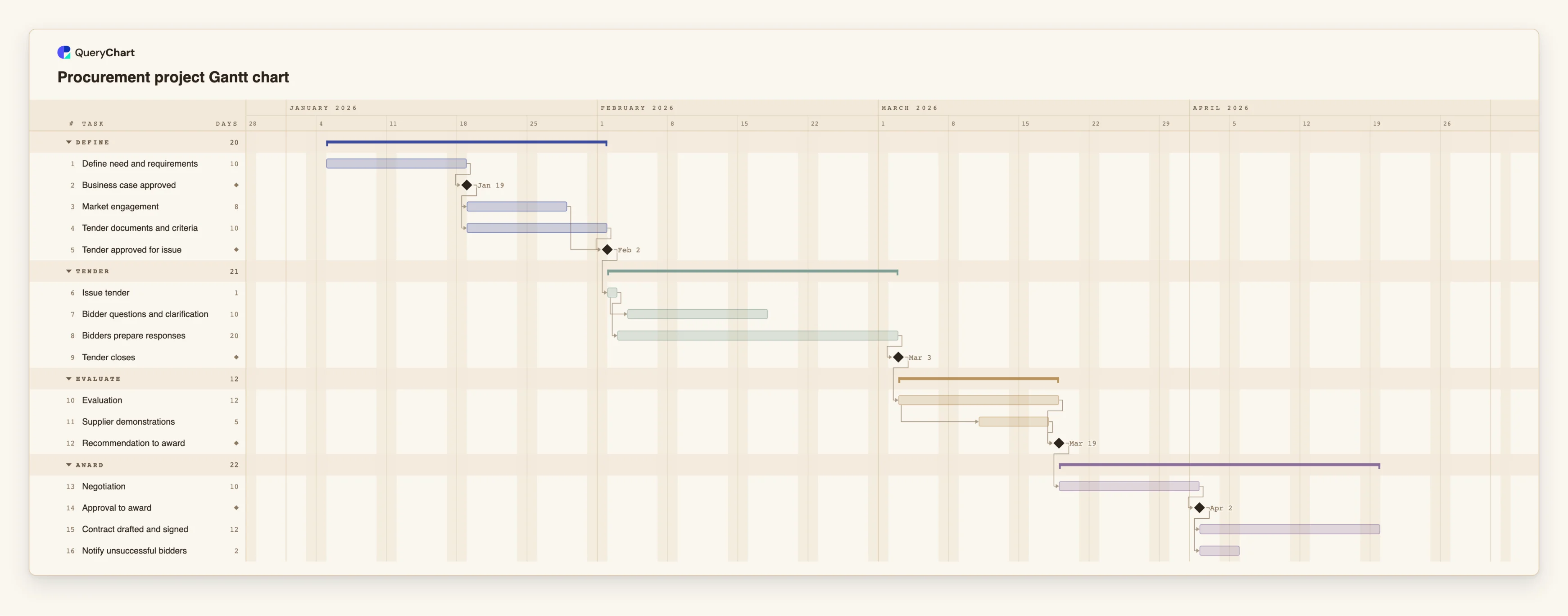
The example is a procurement project, where a plan document is almost always required. The schedule is the part below.
The schedule section of a procurement plan
Sixteen tasks from the business case to the signed contract. Scope, risks and budget would sit in the plan document around this chart.
Need and approval
"Define need and requirements" takes 10 working days. "Business case approved" has a length of 0, a milestone: the decision point a plan document would record, and the schedule simply waits for it.
Preparing the tender
"Market engagement" (8 days) and "Tender documents and criteria" (10) both start after the business case and run side by side. "Tender approved for issue" is a milestone that waits for both.
Tender period
"Issue tender" takes 1 day. "Bidder questions and clarification" is set to start 2 days after it starts, while "Bidders prepare responses" takes 20 days and ends at the "Tender closes" milestone.
Evaluation to contract
"Evaluation" takes 12 days, "Supplier demonstrations" start 6 days into it, and "Recommendation to award" waits for both. "Negotiation", "Approval to award" and "Contract drafted and signed" (12 days) follow.
How it works
Write the plan's non-schedule sections first
Record scope, deliverables, roles, risks and budget in your plan document. The schedule depends on what is in scope, so settle that before you build the Gantt.
Turn deliverables into tasks
Break each deliverable into tasks you can estimate in whole working days and enter them in the sheet, one per row.
Add dependencies and approval milestones
Use Depends on for what waits for what. Give approval gates a Duration of 0 so each shows as a diamond.
Group the tasks into phases
Give tasks a Group so each phase has a band and a summary bar, matching the phases in the plan.
Assign people and add notes
Add the owner of each task in People and use Notes for the detail that does not belong on the bar.
Export it into the plan
Export the chart as a PDF, PNG or SVG and place it in the schedule section. Share the live chart as a link if readers need current dates.
Mistakes to avoid
Treating the Gantt as the whole plan
A set of bars does not record scope or risk. Reviewers will ask what is included and what could go wrong, so answer those in the document.
Expecting budget or baselines in the chart
QueryChart's Gantt has no cost tracking and no baseline to compare against. Keep the budget in the plan and note any date you want to hold to.
Letting the two drift apart
If the plan states one finish date and the chart another, readers lose trust. Re-export the chart whenever the plan is revised.
Build the schedule for your plan
Open the procurement project as your own chart, replace its tasks with yours and export it into the plan.
Related guides
Frequently asked questions
Is a Gantt chart a project plan?
No. A Gantt chart is the schedule view of a project plan. The plan also covers scope, deliverables, risks, budget, roles and reporting.
Do I need both?
For anything beyond a small task list, usually yes. The plan gets agreement on what will be done; the Gantt coordinates when.
Can QueryChart track the budget?
No. The Gantt has no cost or effort fields. Use Notes on a task for a short remark and keep the budget in a spreadsheet or the plan document.
How do I get the Gantt into my plan document?
Export it as a vector PDF, PNG or SVG and insert it. The CSV export lists tasks with ISO dates if you prefer a table.