Critical path in a Gantt chart: how to read it and shorten a schedule
What the critical path is, how to read it on a Gantt chart, how to shorten a schedule by working on the right tasks, and what the critical path does not tell you about risk or effort.
The critical path is the longest chain of dependent tasks in a plan. It sets the finish date, so a delay on it delays the project and a saving elsewhere does nothing.
The short version
- The critical path is the longest chain of dependent tasks; it sets the finish date.
- Switch it on with View, Critical path (off by default). Selecting a task lights its upstream and downstream chain.
- To finish earlier, shorten or overlap tasks on the path; savings off the path change nothing.
- After a change the path can move to another chain, so check it again.
- It does not show risk, effort, cost or who is overloaded.
What the critical path is, and how to use it
Every plan has many chains of tasks, each following its own dependencies. The chain that takes the longest from the first task to the last is the critical path, because the project cannot end before that chain does. Tasks on it have no room to slip. Tasks off it have some room, and the amount of room is the difference between when they must be done and when they are done.
In QueryChart the critical path is a reader toggle: View, Critical path, off by default. Switching it on lights the chain of tasks that sets the finish date. It is a display choice for the person looking, not a change to the plan, and exports follow it. Separately, selecting any task lights its upstream and downstream chain, which answers a different question: what does this task wait for, and what waits for it?
Reading the path gives you a short list of tasks to protect. If the finish date must move earlier, the only options that work are to shorten a task on the path, to overlap two tasks on it with a start-to-start link where the work allows, or to take a task off the path by removing a false dependency. Shortening a task elsewhere changes nothing. Be aware that as you shorten the path, another chain can become the longest, and the critical path moves to it. Work through the new one in turn.
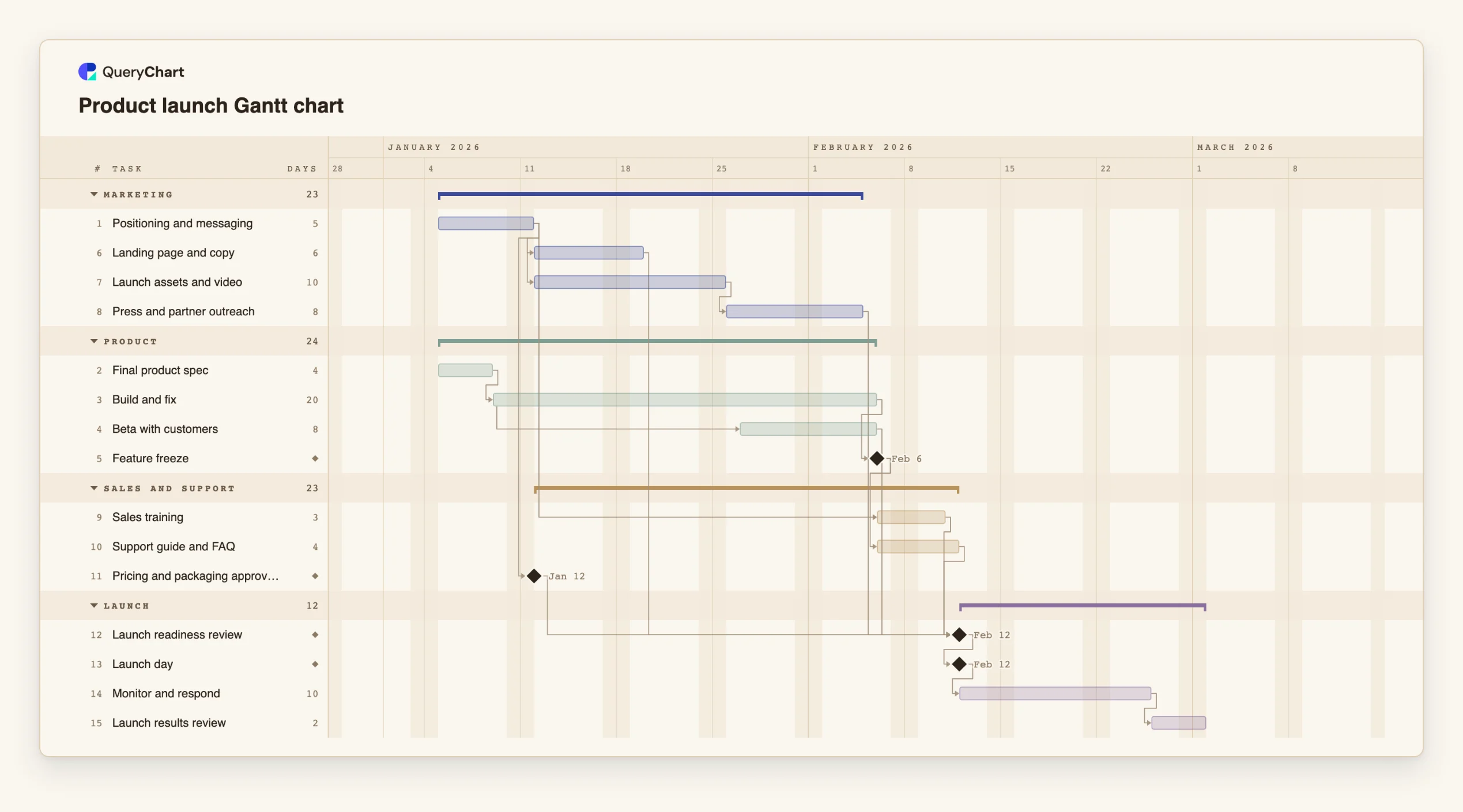
The example below is a product launch plan. Switch on the critical path in the example and compare the lit chain with the bars that have room to spare.
A product launch plan with one long chain and several short ones
Fifteen tasks in three stages. Switch on View, Critical path to light the chain that sets the launch date.
The long chain starts with the spec and the build
"Final product spec" takes 4 working days and "Build and fix" 20. "Beta with customers" starts 12 days into the build and ends with it, and "Feature freeze" is a milestone that falls when the build ends. This chain is the backbone of the launch date.
Preparation that waits to be needed
"Landing page and copy" and the launch assets follow "Positioning and messaging", which is only 5 days long, so they finish many days before the build does. "Sales training" (3 days) and "Support guide and FAQ" (4 days) wait for the feature freeze, so they sit on the end of the long chain.
The gate, the launch and what follows
"Launch readiness review" is a milestone that waits for every preparation task. Of those, "Support guide and FAQ" is the longest after the freeze, so it sets the date. "Launch day" is a milestone, "Monitor and respond" runs 10 days and "Launch results review" closes the plan.
How it works
Build the plan with real dependencies
The critical path is only as accurate as the links. Enter each task's length in working days and its true predecessors in Depends on. A missing link hides a chain, and a false link invents one.
Switch on the critical path
Open the View menu and choose Critical path. The chain that sets the finish date is lit. The setting is yours as the reader; it is off by default and does not alter the plan.
Check the lit tasks against what you expected
Ask whether the lit chain matches your sense of where the project is tight. If a task you thought was safe is lit, look at its predecessors; if an obvious bottleneck is not, a dependency may be missing.
Select a task to see what depends on it
Click a task to light its upstream and downstream chain. Use this on a task just off the path to see how many days it could slip before it joins the path, by comparing the finish of its chain with the task it feeds.
Shorten the path, then look again
Cut a task's length, split it into overlapping parts with a start-to-start link, or remove a dependency that was only habit. Then re-read the path: a different chain may now be the longest and the saving may be smaller than you hoped.
Mistakes to avoid
Saving time on tasks that are not critical
Shortening a task off the path does not move the finish date. Before spending effort on a task, check that it is lit or that it feeds a lit one.
Treating a near-critical chain as safe
A chain that is only a day or two shorter than the critical one is critical in practice. A small slip turns it into the new longest chain. Watch the tasks just off the path as well as those on it.
Crashing a task and ignoring the cost
Shortening a task usually means more people or less scope. QueryChart does not track cost or effort, so the saving you see on the chart has to be weighed against that elsewhere.
Reading the path as a measure of importance
A task off the critical path can still matter for quality, for a customer or for a legal deadline. The path says only which tasks set the finish date given the lengths you entered.
Open the product launch plan
Open the product launch plan as your own chart, switch on the critical path and try shortening a task to see whether the launch date moves.
Related guides
Frequently asked questions
How do I show the critical path in QueryChart?
Open the View menu and choose Critical path. It is off by default, it is a setting for the person looking, and exports follow it.
Can a plan have more than one critical path?
Yes. If two chains take the same time, both set the finish date and a delay on either delays the project. Treat both as critical.
Does the critical path show how much room other tasks have?
The toggle lights the chain that sets the finish date, so every task off it has some room before it would move the end. It does not give a figure for that room. To judge it, select a task and compare when its chain ends with the start of the task it feeds.
What does the critical path not tell me?
It does not show risk, uncertainty in the estimates, effort, cost or whether a person is overloaded. It reflects only the lengths and dependencies you entered. See /guides/gantt-chart-best-practices for keeping those honest.
Why did the critical path change after I edited the plan?
Shortening a task on the path can make another chain the longest. The lit chain always shows the current longest one.