How to define flowchart connections in CSV
How to write the Line to and Line text columns in a CSV file: row positions rather than step names, branch labels paired by position, the comma that splits a label in two, and what inserting a row does.
In a CSV, a connection is a row position in the Line to column and its label is the matching entry in Line text: two plain-text columns paired by position, with no identifiers and no quoting to protect them.
The short version
- Line to holds 1-based row positions, comma-separated: "7,6,21".
- Line text holds the branch labels in the same order, paired by position.
- A comma inside a branch label reads as a second branch, and quoting does not rescue it.
- Inserting or deleting a row renumbers every position below it.
- A number lower than the current row is a legal backward edge, not a mistake.
Two columns carry every arrow in the file
A CSV has no way to express a link. It is a flat list of records with a delimiter between the fields, and nothing in the format lets one record refer to another. So a flowchart written as CSV has to invent the reference itself, and QueryChart's convention is the simplest one available: the Line to column holds the 1-based position of the row you are pointing at, comma-separated when a step leads to more than one place, and the Line text column holds the labels for those arrows in the same order.
That is the whole mechanism. "5,4" in Line to draws two arrows, to the fifth and fourth data rows in the file; "Yes,No" in Line text puts Yes on the first and No on the second. The pairing is positional, not by name, which means the two cells have to be kept in step by hand and neither one can validate the other. Get the order crossed and the file still imports, the chart still renders, and it says the opposite of what you meant.
Positions are also why a CSV of connections is fragile in a way an Excel sheet with formulas is not. There is no anchoring, no relative reference, no ID column doing the work. Insert a row in the middle of the export and every position below it shifts by one, while every Line to cell above it keeps pointing at the old number. If your rows are coming out of a system that reorders them, read /guides/how-to-structure-csv-for-flowcharts before you write a single Line to value, because row order is the schema.
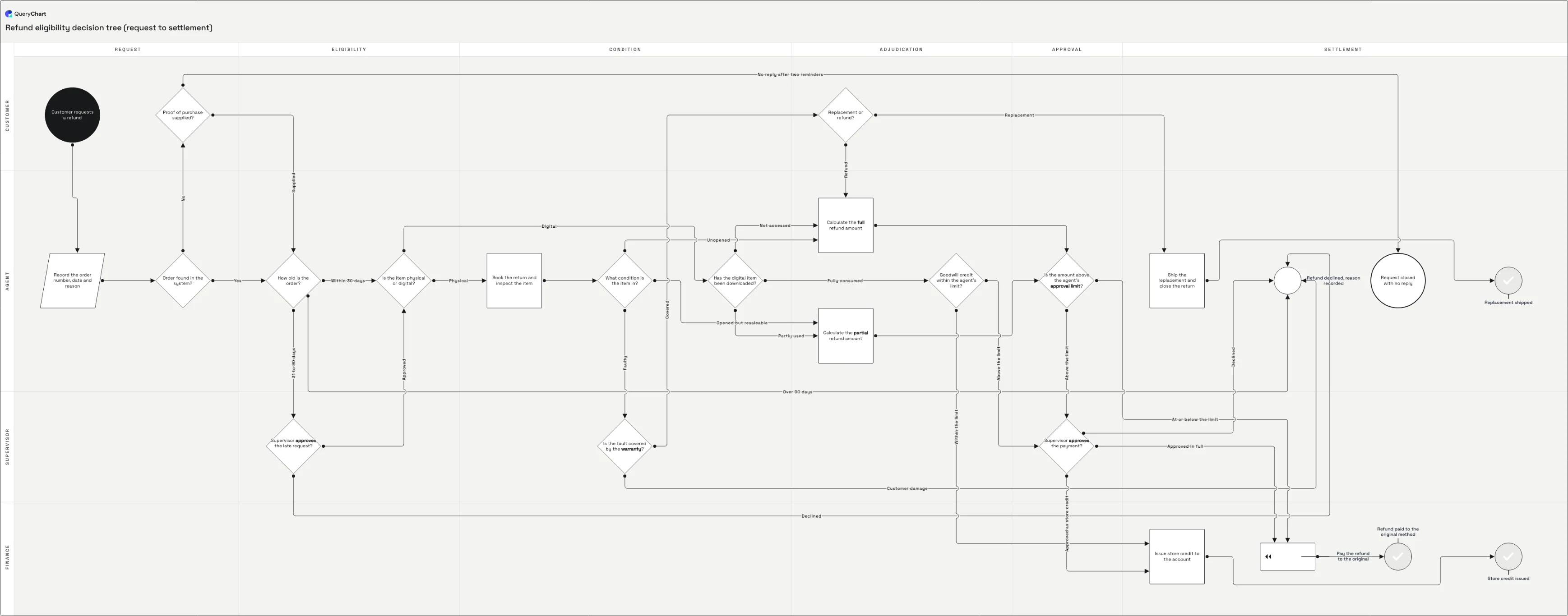
The example below is a refund eligibility decision tree: 25 rows, four of which fork three ways, one of which points backwards. It is the shape you get when a real adjudication policy is written as a file rather than drawn. Open the spreadsheet panel under the canvas and read the Line to column against the arrows, or open /templates/csv-decision-tree and edit the cells directly.
Line to and Line text on a 25-row decision tree
A refund eligibility tree at four stages. Open the spreadsheet panel to read the connection columns against the arrows they draw.
Rows and shapes, no arrows yet
The first seven rows carry Box text and Shape and nothing else: a Start, an Input recording the order number, and five diamonds ending at "Is the item physical or digital?". The canvas shows seven loose boxes. Every question in the policy is written down and not one of them has an answer path, because Line to is still empty.
Line to points at row positions
Now the positions are filled in. "Order found in the system?" has Line to reading 5,4 and forks two ways; "Is the item physical or digital?" reads 8,11 and splits the tree into the physical branch and the digital one. Note that 5,4 is not sorted: the order in the cell is the author's order, and it is the order Line text will be matched against.
Line text labels the exits
"How old is the order?" pairs 7,6,21 with "Within 30 days,31 to 90 days,Over 90 days": three positions, three labels, matched left to right. None of those labels contains a comma, and that is deliberate rather than lucky. Row 14, "Replacement or refund?", points at 19,12, and 12 is above it: a backward arrow to "Calculate the full refund amount" that looks like an error and is exactly right.
Terminators and lanes
The last rows are the five ways this tree can end: a Reject row, "Request closed with no reply" as an End, and three Success rows for the refund, the store credit and the replacement. Their Line to cells are empty, which is how a terminal step is declared in CSV: an absent value, not a keyword. The two lane columns then place all 25 rows across Request through Settlement and Customer through Finance without touching a single connection.
How it works
Fix the row order before writing any positions
Line to refers to positions in the file, so the file's order is load-bearing. Sort the export once, exactly the way you want it, and stop sorting it. If the rows arrive from a system that re-orders on every extract, freeze them into a working copy first, otherwise the numbers you write today address different steps tomorrow.
Number the data rows starting at 1 below the header
The header row is not a data row and does not count. The first step in the file is position 1, the next is 2, and so on down. Put those numbers in a scratch column while you work; the importer does not need it, but you do, because you are about to type twenty references by hand.
Write single-successor steps first
Walk the file top to bottom and give every straight-through step one number in Line to. This is fast, it is hard to get wrong, and it leaves only the forks needing thought. Leave the cell empty on a step that genuinely ends the process: an empty Line to is what makes a row terminal.
Write the forks as comma-separated positions
On each decision, put every destination in one cell: 7,6,21 means three exits. Whitespace around the commas is trimmed, so "7, 6, 21" is fine. What matters is the sequence, because you are about to write a second list that has to line up with it entry for entry.
Write Line text in the same order
For a Line to of 7,6,21 write Line text as Within 30 days,31 to 90 days,Over 90 days. Read them as pairs before you move on: first position with first label, second with second. Nothing checks this for you, and a crossed pair produces a chart that is confidently, plausibly wrong.
Drop the file in and read the arrows back
Drop the .csv onto the spreadsheet area of a new chart, or paste the text into it: there is no import wizard and no column mapping step, because the header names are matched directly. Then trace two or three branches on the canvas against the policy. Out-of-range positions and unlabelled exits show up immediately at that size.
Mistakes to avoid
A comma inside a branch label
Line text is split on commas after the CSV parser has already unquoted the field, so "Yes, with supervisor approval" becomes two branches: "Yes" and "with supervisor approval". Wrapping the cell in quotes does not help, because the quoting was consumed by the CSV layer and the split happens afterwards. Write the label without the comma: "Yes with supervisor approval", or a dash.
Inserting a row and not renumbering
Positions are absolute, so adding one step in the middle shifts every row below it by one while every existing Line to value keeps pointing at the old number. The chart still renders; the arrows just land one step early. Add new steps at the end of the file where they renumber nothing, or renumber deliberately and re-read the whole column.
Two lists of different lengths
Three positions and two labels leaves the third arrow unlabelled; two positions and three labels discards the extra. Neither raises anything. Count the commas in both cells whenever a decision has more than two exits: this tree has four rows that fork three ways, and those are where it happens.
Assuming a backward number is a typo
A Line to value lower than the row it sits on draws an arrow back up the chart, and that is a normal loop: a rework path, a resubmission, a shared calculation reached from two directions. "Replacement or refund?" pointing at 12 in the example is one. Do not clean these up on sight; see /guides/how-to-create-a-flowchart-from-csv for what the finished file looks like.
Open the decision tree and read its Line to column
Open the refund tree as your own chart, then replace the rows with your own and keep the connection columns as they are.
Related guides
Frequently asked questions
Why row positions instead of an ID column?
Because a CSV that comes out of another system rarely has a stable key you can use, and the ones it does have are usually record identifiers rather than step identifiers. The row position is always available, always unique and needs no agreement with whoever produced the export. The cost is that the position is only meaningful while the order holds, which is why row order matters more in a CSV flowchart than in any other format.
Do I count the header row when I number positions?
No. Position 1 is the first data row, immediately below the header. This trips people up when they are reading positions off a spreadsheet, where the header is row 1 and the first step is row 2, everything is off by one against the file. If the arrows all land one step early, this is usually why.
Can a step point at more than two rows?
Yes, and decision trees routinely do. In the example, "What condition is the item in?" has three exits and "Supervisor approves the payment?" has three, one of which is a rejection. Put all the positions in the one cell, comma-separated, and the same number of labels in Line text. There is no limit that matters in practice; readability gives out long before the format does.
What happens if Line to names a row that does not exist?
The connection is dropped and nothing is reported. A position past the end of the file, a blank left where a number should be, or a leftover number from a version of the export with more rows in it all produce the same result: an arrow that simply is not there. This is the failure mode to check for after any edit to the file's length. See /csv-to-flowchart for the full round trip.
Can I use the step's name in Line to instead of a number?
No: the column is read as positions. Names would also be ambiguous in most real files: this tree has two rows that both end in "approves" and several that read as variants of the same question. A number is unambiguous by construction, which is the reason the identity is positional and not textual.